
Apple’s second-generation AirTag brings several notable improvements, including one that expands the device’s standout Precision Finding feature to Apple Watch for the first time. If you’ve picked up an AirTag 2 and own a compatible Apple Watch, here’s what you need to know about setting up and using this helpful tracking tool right from your wrist.
What Makes Precision Finding Special
Precision Finding has long been the most useful feature on AirTag devices. Rather than simply showing you a general location on a map, it uses a combination of haptic feedback, visual guidance, and audio cues to lead you step by step directly to your lost item. It’s the difference between knowing your keys are somewhere in the living room versus being guided exactly to the couch cushion they slipped behind.
With AirTag 2, Apple has improved this feature in two meaningful ways. The range has been extended to work from up to 1.5 times farther away than the original AirTag, and for the first time, the feature is now available on Apple Watch. That second improvement means you can track down lost items without pulling out your iPhone, which is particularly handy when your hands are full or you’re already moving around looking for something.
Setting Up Precision Finding on Apple Watch
The setup process isn’t immediately obvious, which may catch some users off guard. Instead of configuring Precision Finding through the Find Items app on your watch, you’ll need to use Control Center. Here’s the complete setup process:
- Press the side button on your Apple Watch to open Control Center
- Scroll to the bottom of Control Center and tap Edit
- Tap the Add button in the top-left corner
- Scroll down until you see Find Items, then tap Find AirTag
- Follow the prompts to add your specific item to Control Center
Once you’ve completed these steps, your AirTag will appear in Control Center with a custom icon matching its item type. For example, if your AirTag is attached to a backpack, you’ll see a backpack icon. If it’s on your keys, you’ll see a key icon. This visual distinction makes it easier to quickly identify which item you’re tracking when you have multiple AirTags.
Hardware and Software Requirements
Not every Apple Watch can use Precision Finding with AirTag 2. You’ll need to meet specific hardware and software requirements to access this feature.
Compatible Apple Watch Models
The feature requires an Apple Watch Series 9 or later, or an Apple Watch Ultra 2 or later. Earlier Apple Watch models don’t have the necessary hardware to support Precision Finding functionality.
Software Requirements
Your Apple Watch must be running watchOS 26.2.1 or later. If you haven’t updated recently, check for the latest watchOS version in the Watch app on your iPhone.
Using Precision Finding in Real World Situations
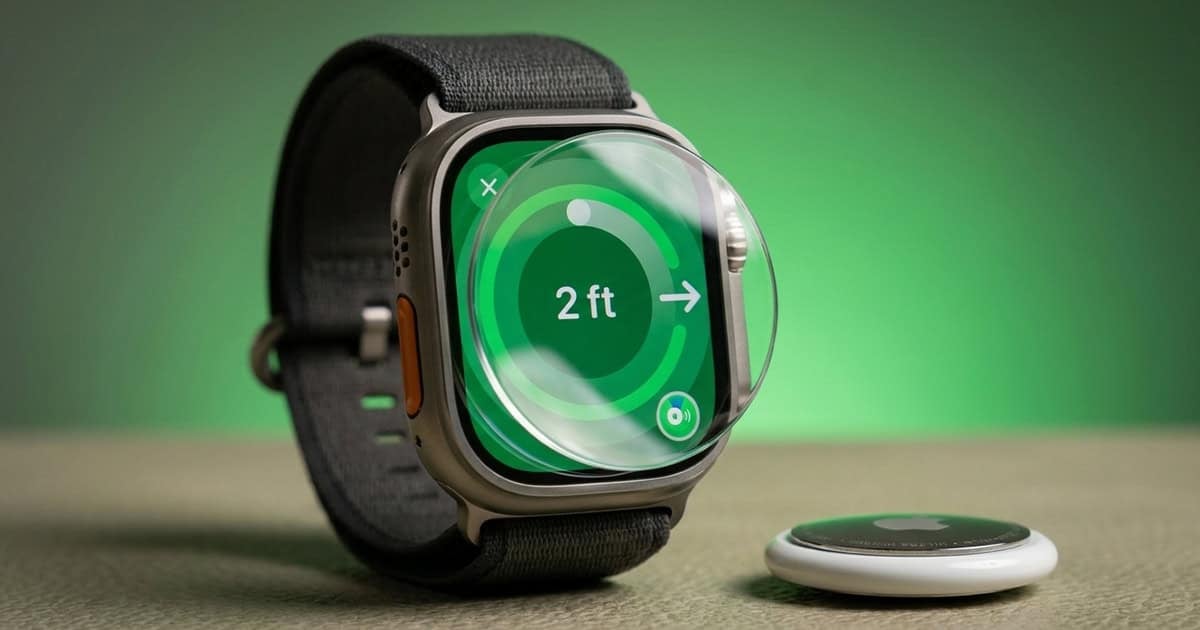
Having Precision Finding accessible directly from Control Center is genuinely convenient. When you’re searching for a lost item, you can raise your wrist, swipe up to open Control Center, and tap the relevant item icon to begin tracking. The haptic feedback guides you with gentle taps that intensify as you get closer, while the display shows directional arrows and distance measurements.
The watch-based implementation works particularly well in situations where using your iPhone would be awkward. If you’re carrying groceries, pushing a stroller, or simply want to keep your phone in your pocket, having this functionality on your wrist feels natural and practical.
That said, the Find Items app would seem like a logical place to also include Precision Finding access. Perhaps Apple will add this option in a future software update, giving users multiple ways to access the feature depending on their preference.
Pricing and Availability
AirTag 2 is currently available for purchase at $29 for a single unit or $99 for a four-pack. The pricing remains unchanged from the original AirTag, making the improved range and Apple Watch compatibility welcome additions at the same cost.
FAQ
Q: Can I use Precision Finding on older Apple Watch models with AirTag 2?
A: No, Precision Finding on Apple Watch requires an Apple Watch Series 9 or later, or Apple Watch Ultra 2 or later. Earlier models lack the necessary hardware to support this feature.
Q: Do I need AirTag 2 to use Precision Finding on Apple Watch, or will the original AirTag work?
A: You need AirTag 2 to use Precision Finding on Apple Watch. The original AirTag does not support this functionality, even with compatible Apple Watch hardware and updated software.
Q: Can I still use Precision Finding on my iPhone if I set it up on Apple Watch?
A: Yes, setting up Precision Finding on your Apple Watch doesn’t affect iPhone functionality. You can use Precision Finding on both devices independently.
First and Geek Verdict
Bringing Precision Finding to Apple Watch is a smart move that makes AirTag 2 more useful in everyday situations. The setup process through Control Center isn’t intuitive at first, but once configured, having quick wrist-based access to find your lost items is genuinely helpful. If you already own a compatible Apple Watch and frequently use AirTags, this feature alone makes the upgrade to AirTag 2 worth considering. The extended range is a bonus that further improves the tracking experience. For anyone in the Apple ecosystem with a newer Apple Watch, AirTag 2 delivers meaningful improvements over the original at the same price point.