
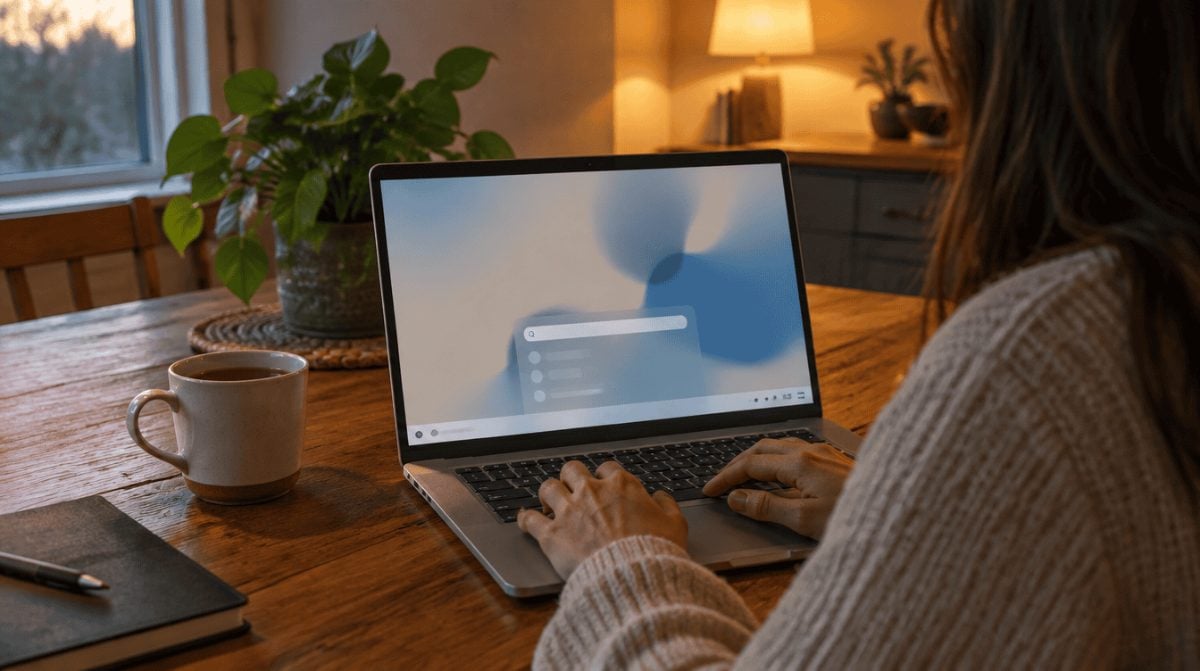
For years, typing into the Windows taskbar box has mostly meant one thing: find an app, a file or a Settings page, then click again to actually do something. The Windows 11 new search bar flips that around. In test builds Microsoft started rolling out on October 7, 2026, you can type a plain request like “turn on Bluetooth” and the search box carries it out on the spot.
It is still limited to Windows Insiders on the Experimental channel, so most family PCs will not see it yet. But it shows where everyday Windows is heading, and it does not need a Copilot+ PC or any special AI chip to work.
The short answer
The Windows 11 new search bar is a rebuild of Windows Search on Microsoft’s newer WinUI 3 framework. The company describes the result as quicker and lighter on memory, with a cleaner layout where results are simpler to scan at a glance. It is also better at guessing what you meant when you mistype a word or use a different term for the same thing.
The headline addition is what Microsoft calls inline actions: small system tasks you can finish right inside the search panel instead of digging through Settings or Quick Settings.
What the Windows 11 new search bar can do right now
Microsoft’s own examples of inline actions cover five everyday chores:
- Switching the PC to dark mode
- Turning Bluetooth on
- Changing screen brightness
- Muting the computer
- Arranging open windows on screen
Picture a grandparent who wants the screen dimmer at night but has no idea where the brightness slider lives. Typing a short request beats a tour through nested menus, and the Windows 11 new search bar is built for exactly those small jobs.
The preview is tied to two specific builds, according to the Windows Insider build announcement: 26340.9616 on 26H2 and 28120.3181 on 26H1. Newer Experimental builds released October 30, 26340.9843 and 28120.3393, add inline sliders for volume, brightness and cursor size. Microsoft is turning it on gradually, so even Insiders on those builds may not have it yet. The company has pointed testers to a Feature flags page, found under Settings > Windows Update > Windows Insider Program, as a manual way to turn it on.
How it works without fancy AI hardware
Plenty of recent Windows features have been locked to Copilot+ PCs with a dedicated neural processing unit. This one is different. Microsoft says, per Windows Central, that inline actions rely on a small machine-learning model running locally on the regular processor, and that it is not generative AI.
That matters for households running older laptops. If the Windows 11 new search bar reaches everyone, an older family laptop running Windows 11 should get the same shortcuts as a brand-new premium model. It fits the same pattern as the Windows 11 8GB RAM update, where Microsoft tuned Windows for ordinary hardware.
Windows 11 new search features still on the way
Microsoft has outlined several additions it is working on:
- File previews. A look inside documents and more file details without opening them.
- Richer web results. Cards for things like the weather, stock prices and general questions.
- Filters. A way to narrow results to one category, such as files only.
- Copilot answers. An optional, opt-in extra that shows AI answers inline, starting in select markets later this year.
- Calling and texting from search. Phone Link actions for Android phones, with iPhone support expected early next year.
The October 30 builds started adding several of these for testers, including file previews, web answers, result filters and Phone Link actions.
The Start menu keeps the current search for now. Microsoft plans to bring the redesigned experience there in 2027.
What it means for your family PC
For most households, nothing changes today. There is no general release date for all Windows 11 users, and Microsoft has not said when the Windows 11 new search bar will leave testing. Your taskbar search keeps working as it does now until an update arrives.
When it does land, the biggest winners will be less confident users who rarely open Settings. If you are the person everyone calls for help, expect fewer “how do I make the screen darker” phone calls.
Common misconceptions
It is not a Copilot chatbot in the taskbar. The Windows 11 new search bar and its inline actions work without Copilot. AI answers are a separate opt-in layer still to come, so families who prefer to keep AI out can skip them.
It is not on your PC yet. The preview sits in the Experimental channel only. If your taskbar search looks the same, nothing is broken.
Testers cannot switch back yet. The current preview build has no option to return to the older taskbar search. If you would rather stay on a stable release, our guide on getting the Windows 11 26H2 update walks through it.
Frequently asked questions
How do I enable the Windows 11 new search?
You need to be a Windows Insider on the Experimental channel running build 26340.9616 or 28120.3181 or later. If it is missing, try the Feature flags page in the Windows Insider Program settings, then restart.
Does the new Windows search need a Copilot+ PC?
No. The inline actions run on a small local model on the main processor, so no neural processing unit is required.
When will the new search come to all Windows 11 PCs?
Microsoft has not announced a date. It is in testing now, and the Start menu version is planned for 2027.
Should you join the Insider program to try the new search?
If you enjoy tinkering on a spare PC, the Experimental channel is a fair way to try the Windows 11 new search bar early. On the computer your family relies on for homework and bills, wait for the regular update instead. Shortcuts for dark mode and Bluetooth are nice, but a stable PC beats a clever search box every time.