
Last Updated: February 2026 | Reading Time: 4 minutes | Author: First and Geek Editorial Team
iOS 26 includes a clever screenshot feature that many users may not have discovered yet. Using visual intelligence powered by AI, your iPhone can now detect plain text URLs in screenshots and automatically convert them into tappable links, saving you the hassle of manually typing or copying web addresses.
The Problem This Feature Solves
We’ve all been there: you’re browsing social media or looking at content where URLs appear as plain text rather than clickable links. This happens frequently on platforms like Instagram, where hyperlinks aren’t allowed in captions or comments. You’re left with two common scenarios: either a “link in profile” instruction that requires extra navigation, or a plain text URL that’s tedious to manually type into your browser.
While some platforms have moved away from displaying bare URLs in recent years, the problem still crops up regularly enough to be frustrating. That’s where iOS 26’s visual intelligence feature steps in with an elegant solution.
How the Screenshot URL Feature Works
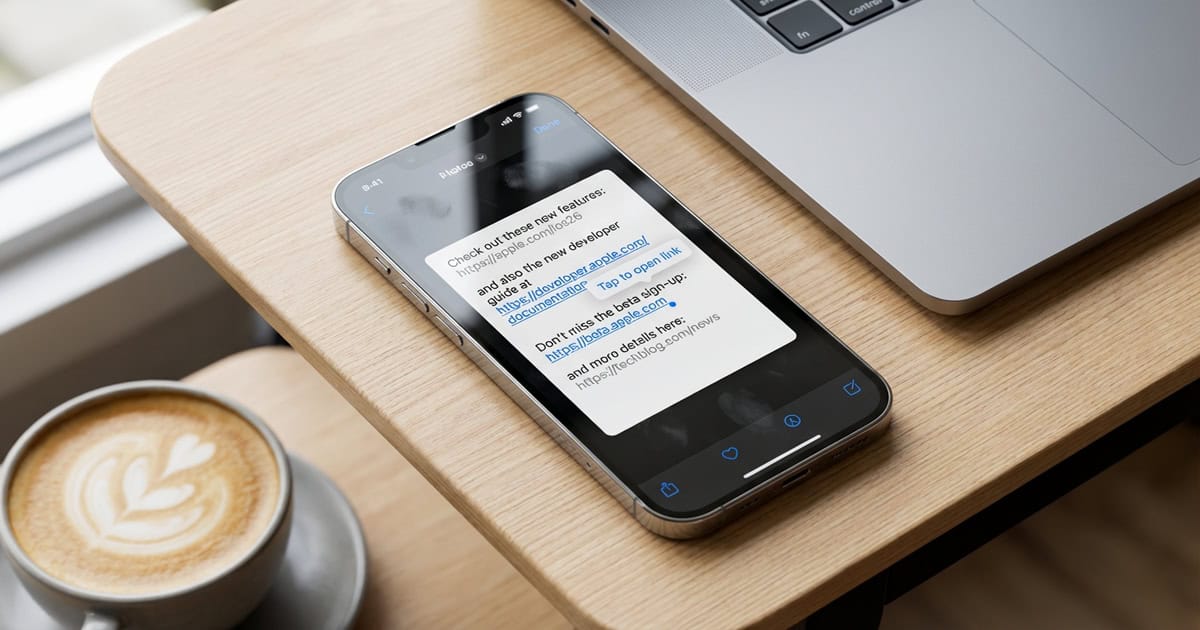
When you take a screenshot in iOS 26 that contains a plain text URL, the operating system uses AI to detect the web address automatically. Once detected, iOS 26 displays a tappable hyperlink version of that URL at the bottom of your screen, allowing you to open it with a single tap instead of copying and pasting or retyping the address.
The process is straightforward and happens almost instantly. After capturing your screenshot, the fullscreen preview interface shows the detected link ready for use. This small convenience can save meaningful time when you encounter multiple plain text URLs throughout your day.
Device Requirements and Compatibility
Not every iPhone can take advantage of this feature. Because it relies on Apple’s visual intelligence AI capabilities, you’ll need one of the following models:
- iPhone 17 (any model)
- iPhone 16 (any model)
- iPhone 15 Pro or iPhone 15 Pro Max
Standard iPhone 15 models and older devices reportedly don’t support this functionality, as they lack the necessary AI processing capabilities.
Accessing the Feature Based on Your Screenshot Settings
How you access this feature depends on which screenshot behavior you’ve chosen in iOS 26. By default, screenshots in iOS 26 open in a fullscreen interface immediately after capture. In this view, you’ll see any detected URLs displayed as tappable links at the bottom of the screen.
However, if you’ve changed your settings to use the iOS 18-style behavior where screenshots appear only as a small thumbnail in the bottom-left corner, you’ll need to take an extra step. Simply tap that thumbnail to open the fullscreen view, and then you’ll see the detected URL link ready to use.
Practical Applications in Daily Use
This feature shines in several common scenarios. Social media platforms with link restrictions are an obvious use case, but it’s also handy when viewing PDFs, reading digital magazines, looking at images shared in messaging apps, or reviewing presentation slides that display URLs as text rather than active links.
The convenience factor becomes more apparent the more you use it. Rather than squinting at a URL to type it correctly or going through the multi-step process of selecting and copying text from an image, you simply take a screenshot and tap the generated link. It’s a small quality-of-life improvement that adds up over time.
Part of iOS 26’s Broader Visual Intelligence Capabilities
This URL detection feature is just one component of the visual intelligence tools Apple introduced in iOS 26 for screenshots. The update reportedly includes several other AI-powered screenshot enhancements designed to make captured images more useful and interactive.
The underlying technology analyzes the content of your screenshots to identify actionable information, whether that’s URLs, contact details, calendar events, or other data types. This represents a shift toward making screenshots more than just static images, transforming them into interactive tools that can trigger actions.
FAQ
Q: Will this feature work with all types of URLs?
A: The feature is designed to detect standard web URLs in plain text. It should work with most common URL formats, though extremely long or unusually formatted addresses may occasionally be missed by the AI detection.
Q: Does this feature require an internet connection to work?
A: The URL detection itself likely happens on-device using Apple’s AI processing capabilities. However, you’ll need an internet connection when you actually tap the detected link to open the webpage.
Q: Can I disable this feature if I don’t want it?
A: While specific settings for this individual feature haven’t been widely documented, iOS 26 reportedly includes controls for various visual intelligence capabilities. Check your Settings app under Screenshots or Apple Intelligence options for available toggles.
First and Geek Verdict
iOS 26’s screenshot URL detection is exactly the kind of thoughtful, practical feature that makes daily smartphone use a bit smoother. It solves a genuine annoyance without requiring you to learn new gestures or navigate complex menus. The fact that it works automatically in the background makes it even better, as you simply take a screenshot and the link appears when needed. For anyone with a compatible iPhone who regularly encounters plain text URLs, this is a genuinely useful addition that demonstrates how AI can enhance everyday tasks in subtle but meaningful ways.