
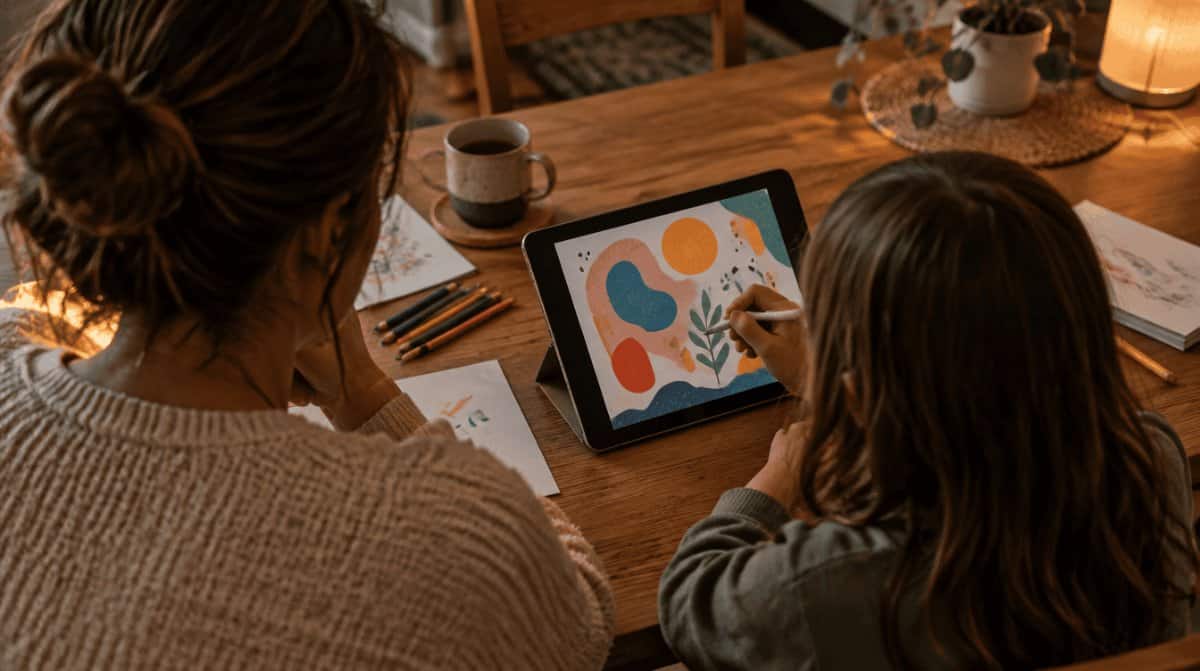
It is the night before the school fair, the poster still needs doing, and every serious design app on the family iPad wants a monthly payment before you can draw a single line. Since early November 2026, there is another way out. Getting Affinity for iPad free takes one App Store download and a Canva account, with no subscription attached.
Canva’s Affinity for iPad page confirms the part that matters: individuals pay nothing for the drawing, photo, vector and page layout tools, and that covers exporting your finished work too. Money only enters the picture if you want the optional AI tools, so most households can stop reading the fine print there.
What you need to get Affinity for iPad free
The shopping list is short: an iPad, access to the App Store and a Canva account. A free Canva account is enough, and if you already use Canva for birthday cards or class flyers, that same login works. An Apple Pencil is a nice extra, not a requirement, since the app also responds to fingers.
One gap to check first. The iPad page does not name supported models or an iPadOS version. It points to Canva’s Affinity system requirements instead, and we could not confirm the iPad details there, so look at that page or the App Store listing before promising anyone a poster by morning. If you are still choosing a tablet for the house, our look at the Alexa tablet versus the iPad is a good place to begin.
| What you get | Free Canva account | Canva premium plan |
|---|---|---|
| Sketch, Pixel, Vector and Layout studios | Yes | Yes |
| Customization and export options | Yes | Yes |
| Future app updates | Yes | Yes |
| Canva AI Studio | No | Yes |
Paying never changes the core deal, since you can use Affinity for iPad free and still export everything. Premium here means Canva’s Pro, Business, Enterprise or Education plans. Those AI tools tackle chores such as removing grain, saving a soft photo and lifting a subject off its background. Affinity’s iPad page quotes no dollar figure for them, so check Canva’s own pricing if the AI side tempts you.
How to set up Affinity on your iPad in 4 steps
- Install the app. Open the App Store, type Affinity into the search box and download it.
- Sign in with Canva. Use the login you already have, or set up a new account at no charge.
- Choose a studio. Start a blank document or open a file you have, then tap Sketch, Vector, Pixel or Layout. The workspace can be rearranged later.
- Take the iPad Essentials course. Canva built this course around the app’s tools and gestures, and it is the sensible stop for anyone new to pro-level design software.
That is all it takes to get Affinity for iPad free, and none of the four steps involves a payment. Think of a studio as a workbench, not a separate program. One .af file can hold your sketch, your photo edits and your page layout, so a project never has to hop between apps. Canva says those same files open on Affinity for Mac and Windows too, which helps if a laptop lives in the house as well.
Three family projects worth trying first
- “A birthday invitation.” Doodle the idea in Sketch, tidy it into clean shapes in Vector, then export a PDF or PNG for the printer or a group chat.
- “A school fair poster.” Drop a photo into Layout, add type over it and send a print-ready PDF to the copy shop.
- “A vacation photo book.” Clean up pictures in Pixel, then place them on pages in Layout. Canva says its layout tools stretch to 500 pages, though the Books feature from the desktop app has not arrived yet.
All three work with Affinity for iPad free, no premium plan involved. Artists get the deepest toolbox. Sketch comes with more than 350 editable brushes, and Canva says they respond when you press harder, lean the Pencil or roll its barrel.
Opening Photoshop and InDesign files
Older projects can come along. The app opens PSD, AI, INDD, IDML, PDF and SVG files, and finished work can leave as a PDF, PNG, JPEG, SVG, WebP, EPUB or INDD file. Expect some cleanup on complicated work, though. Canva warns that Photoshop smart objects can flatten, Illustrator effects can simplify, and InDesign tables may need fixing by hand.
Limits and privacy to weigh
This is a big app on day one, but it is not yet the complete desktop version. These tools are missing from the iPad at launch:
- Books
- Batch
- Data Merge
- Quick Adjustments
- The Info and Scope panels
- Macro recording
- Astrophotography Studio
Canva says more will arrive over time, without giving dates. On privacy, the company states that work you make in Affinity is not used to train AI, and that anything you upload to Canva follows the preferences in your Canva settings. Requiring an account is the real trade-off: there is no way to use Affinity for iPad free without signing in to Canva, which matters if you hand the tablet to a child.
Companies wanting single sign-on need to contact Canva’s Enterprise or Education teams. Canva also describes the app as usable offline, but it has not spelled out whether you must be online to sign in the first time, so do that step at home. We also found no list of known bugs for this first release.
Frequently asked questions about Affinity on iPad
How much does Affinity for iPad cost?
Nothing for individuals. Using Affinity for iPad free covers the download, the four creative studios, exports and future updates, and only the optional AI tools need a paid Canva plan.
Is there an Affinity iPad free trial?
No trial is needed, because the main app has no price to try out. You install it, sign in with a free Canva account and keep using it for as long as you like.
What is the Affinity for iPad release date?
The app launched in early November 2026, and you can download it from the App Store now.
Do I need an Affinity iPad free license?
Canva does not list a license purchase for individuals. Your Canva account is what gives you access, so signing in is the only real step after installing.
Should you grab Affinity for iPad free this week?
Yes, if anyone at home draws, edits photos or makes the occasional flyer, because trying it costs only a few minutes and a free login. Skip it if you rely on batch work or data merging, and hold off on any paid Canva plan until the free tools feel too small. Keeping Affinity for iPad free on the home screen beats paying monthly for a poster you make twice a year.