
Last Updated: February 2026 | Reading Time: 4 minutes | Author: First and Geek Editorial Team
Apple is expanding a useful battery management feature to the Mac with the first beta of macOS 26.4. The Charge Limit feature, previously exclusive to iPhone and iPad, now allows Mac users to set a maximum charge level to help preserve long-term battery health. The update also brings Shortcuts automation support for the feature across both iOS and macOS.
What Is Charge Limit and Why It Matters
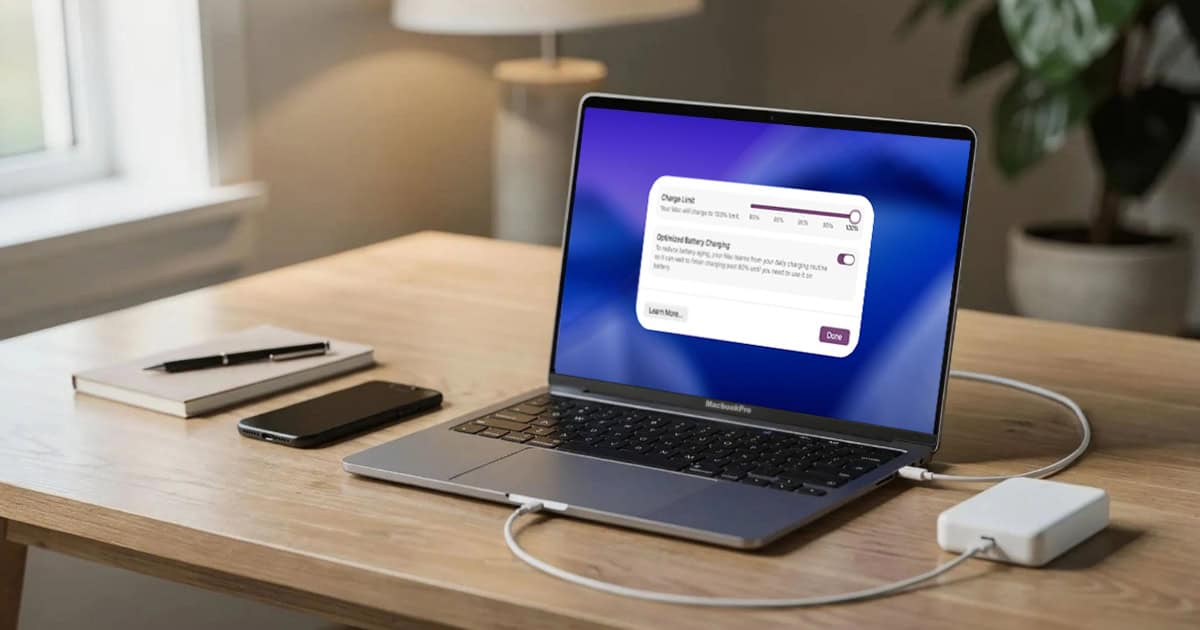
Charge Limit is a battery management tool that lets you specify a maximum charge level for your device. Originally limited to 80% when first introduced, Apple expanded the feature in iOS 18 to allow users to set limits anywhere between 80% and 100%. With macOS 26.4 beta 1, Mac users now have access to this same flexibility.
When enabled, your Mac will stop charging within a few percentage points of your chosen limit. This approach reduces the stress caused by constantly charging to full capacity, which can degrade lithium-ion batteries over time. However, Apple notes that devices will occasionally still charge to 100% to maintain accurate battery state estimates.
To enable Charge Limit on your Mac, open System Settings, navigate to the Battery section, and click the information icon next to “Charging.” From there, you can select your preferred maximum charge level.
Shortcuts Automation Brings New Flexibility
Beyond bringing Charge Limit to macOS, the iOS 26.4 and macOS 26.4 betas introduce Shortcuts support for the feature. This means you can now automate when and how your charge limit is set, opening up possibilities for location-based or time-based battery management.
For example, you could create a shortcut that sets your MacBook to an 80% charge limit when you’re working at your desk but raises it to 100% when you’re preparing for travel. Similarly, iPhone users might automate their charge limit to adjust based on calendar events or charging locations.
This kind of thoughtful integration shows Apple recognizing that battery management isn’t one-size-fits-all. Different users have different needs depending on their usage patterns and access to power outlets.
Who Should Use Charge Limit
Charge Limit makes the most sense for users who frequently have access to power and don’t regularly need a full charge. MacBook users who primarily work at a desk setup are ideal candidates, since the laptop can remain plugged in for extended periods without stressing the battery.
On the other hand, if you rely on your device’s full battery capacity throughout the day, you may want to keep the limit at or near 100%. The feature is designed to be optional and flexible, not prescriptive.
It’s also worth noting that modern Apple devices already include optimized battery charging, which learns your charging habits and delays charging past 80% until you need it. Charge Limit gives you more direct control over this process.
Expected Availability
The Charge Limit feature for Mac is currently available in the first beta of macOS 26.4, which is expected to be released to the public in the coming months. Beta software is typically available to developers first, followed by a public beta program before the final release.
The Shortcuts integration for Charge Limit is also part of the iOS 26.4 and macOS 26.4 beta releases. Users should expect the feature to reach stable versions of both operating systems around the same timeframe.
FAQ
Q: Does Charge Limit work on all Macs?
A: Charge Limit is expected to work on Macs with built-in batteries, such as MacBook Air and MacBook Pro models. Desktop Macs without batteries, like the Mac mini or Mac Studio, would not have this feature.
Q: Will using Charge Limit affect my device’s performance?
A: No, Charge Limit only affects how the battery charges, not how the device operates. Performance remains unchanged regardless of your charge limit setting.
Q: Can I still override the charge limit if I need a full battery?
A: Yes. You can adjust or disable the charge limit at any time through System Settings on Mac or Settings on iPhone and iPad. Changes take effect during the next charging session.
Q: Does Charge Limit replace Optimized Battery Charging?
A: No, the two features work differently. Optimized Battery Charging learns your habits and delays charging past 80% until you need it. Charge Limit sets a hard cap that the device won’t exceed, giving you more direct control.
First and Geek Verdict
Bringing Charge Limit to the Mac is a practical and welcome addition, especially for MacBook users who spend most of their time plugged in at a desk. The feature has already proven useful on iPhone and iPad, and extending it to macOS makes sense given how many people use their laptops as semi-permanent workstations. The addition of Shortcuts support takes it a step further by letting you automate battery management based on your specific needs and routines. While not everyone will need or want to use Charge Limit, having the option reflects Apple’s growing attention to battery longevity and user control. If you’re someone who values keeping your devices healthy over the long haul, this is a small but meaningful tool worth exploring when macOS 26.4 arrives.