
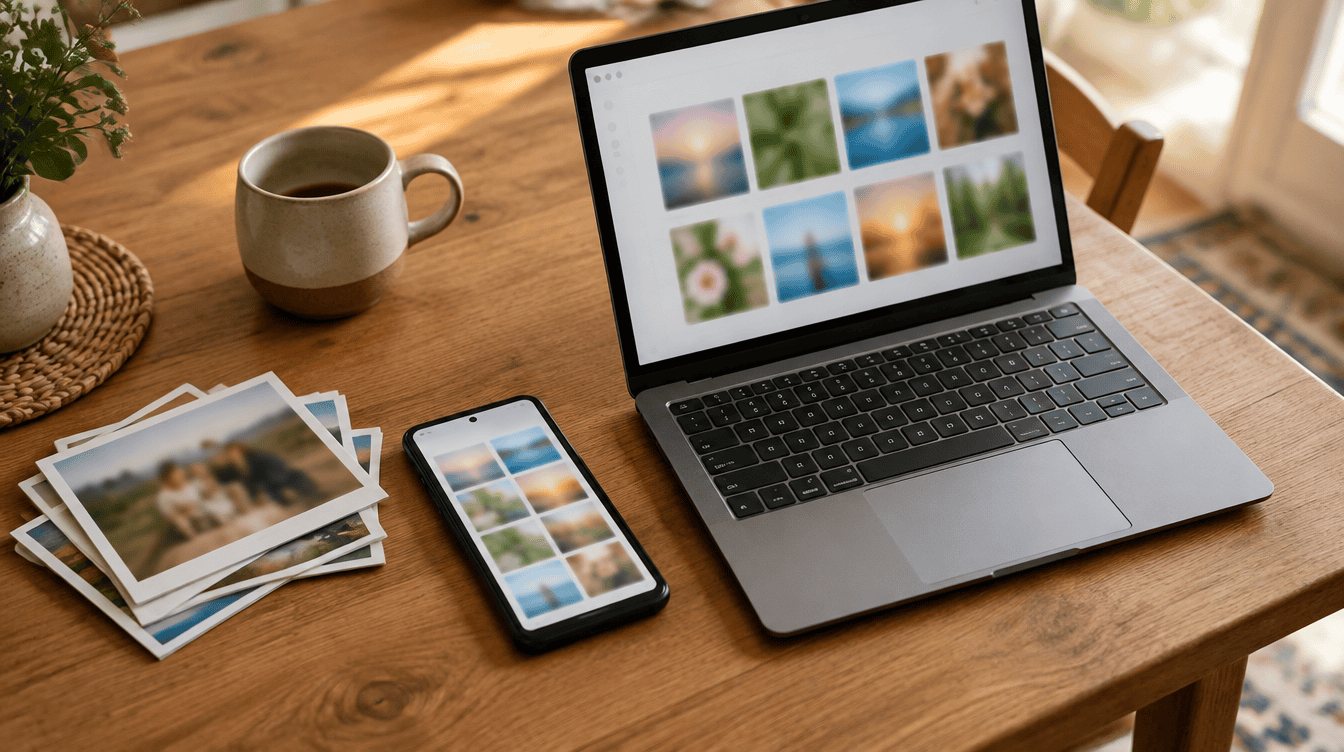
If your phone is the only place your family’s photos live, one lost or broken handset can take years of birthdays with it. Google’s latest system update points to a better habit: a way to auto backup Android photos to PC through Quick Share, with no one needing to remember a monthly transfer.
The change sits in Google’s System Release Notes for November 2026, under Google Play services v26.43, dated November 2. Google’s entry is one line long, and its Quick Share help pages do not explain the new option yet. If you want to auto backup Android photos to PC, the useful move today is getting both devices ready, then using the manual route until the setting reaches your phone.
What you need to auto backup Android photos to PC
The table lists Google’s requirements for Quick Share on Windows. Trying to auto backup Android photos to PC may turn out to have a higher bar, since Google has not listed separate requirements for it.
| Item | What you need |
|---|---|
| Windows PC | 64-bit Windows 10 or newer; ARM-based PCs need Windows 11 or newer |
| Android phone | Android 6.0 or newer |
| PC app | Quick Share for Windows (Samsung PCs use Samsung’s own Quick Share from the Microsoft Store) |
| Connection | Bluetooth on, with both devices on the same network |
| Distance | Within 16 feet (5 meters) |
| Phone update | Google Play services v26.43 carries the new backup entry |
Still on an older Windows build? Our guide to getting the Windows 11 26H2 update is a sensible stop before you install anything new on a shared family PC.
4 steps to get your phone and PC ready
- Install the PC app. Grab it from Google’s Quick Share for Windows page, then open it and sign in with your Google Account. Skip “Run as administrator” here; Google says a standard, guest or child account is the right way to run it.
- Name the computer. During setup, pick a device name under “Visible to others as” so the kids’ laptop and the office desktop are easy to tell apart. Then choose who may send you files under “Receiving”.
- Tighten visibility. In the app, click Settings at the top right, then Device visibility. “Your devices” limits things to hardware on your own Google Account, which is what a personal backup calls for. “Contacts” is the next step up, and “Everyone” opens the PC to anyone nearby with Quick Share on.
- Update the phone. In Settings, tap your own name, choose Google services, then head to the All services tab, Privacy & security and System services. That path is the Pixel one, so other brands may word it a little differently.
Having v26.43 does not guarantee you can auto backup Android photos to PC right away. Listing a change in the notes and switching it on for every phone are two separate events, and some Google features take months to land. No toggle today most likely means you are waiting on the rollout, not doing something wrong.
What Google has and has not said so far
The confirmed part is short: automatic backup of photos and videos, from Android to Windows, through Quick Share, marked for both phones and PCs. Before you plan to auto backup Android photos to PC every night, know that plenty of practical answers are missing, and we would rather say so than guess:
- Where the setting lives, on the phone or in the Windows app
- Which folder the backup lands in on your PC
- Whether it runs only on Wi-Fi or only while charging
- Whether the PC has to be awake with the app running
- Whether older photos are copied or only new ones
- Which Android and Quick Share for Windows versions it requires
Today’s app gives one small clue. Quick Share can already receive files while it sits open in the background, so a quiet transfer to a home PC fits how the software behaves. That still is not a promise about how the backup itself will work.
How to back up Android phone photos to PC by hand today
Until you can auto backup Android photos to PC, a manual run is the dependable fallback. Quick Share ships on Android 6 and newer, so the phone needs no extra app.
- Wake the PC, open Quick Share for Windows and keep the phone close by.
- On the phone, open Quick Share and pick the photos or videos you want to save.
- Check your visibility setting, then choose your PC.
- If a PIN appears, match it on both screens.
- Wait for the transfer to finish, then look in the “Quick Share” folder inside Downloads.
One handy shortcut: when both devices use the same Google Account, the PC accepts the transfer on its own. That removes the click at the other end, which is close to hands-free for a weekly photo run. Just move the files out of Downloads afterward, since that folder tends to get cleaned out on family computers.
If a Quick Share transfer stalls or the PC never appears
Clearing these snags now means fewer surprises when you auto backup Android photos to PC later. Start at the top of this shorter version of Google’s list:
- Check the network. Both devices need to be on one network, and Bluetooth must be on for each.
- Move closer. Google suggests bringing them within about a foot (30 centimeters) when discovery fails.
- Try another visibility setting. A PC set to “No one” cannot receive anything.
- Reset the radios. Close and reopen the app, flip Airplane mode on and off on the phone, or restart.
- Blame the network if you are at work. Some office Wi-Fi blocks device-to-device sharing. Turn on your phone’s hotspot and connect the PC to it instead.
A phone that feels sluggish after a big photo clear-out is a separate problem. Our walkthrough on refreshing and speeding up an Android phone picks up from there.
Frequently asked questions
Does Quick Share work on Windows 11?
Yes. Quick Share for Windows runs on 64-bit Windows 10 and newer, and ARM-based PCs need Windows 11 or newer.
Can you back up Android photos to a PC over Wi-Fi?
Yes, with Quick Share, as long as both devices are on the same network and Bluetooth is on. Automatic backup is still rolling out, and Google has not said if it needs Wi-Fi.
Where do Quick Share files go on Windows?
Received files land in a folder called Quick Share inside Downloads. Google has not said whether automatic backups will use that same folder.
Should you set up Quick Share now or wait for auto backup?
Set it up now. Anyone with a compatible PC and years of pictures on one phone gets a working manual copy today, and you will be ready the moment you can auto backup Android photos to PC. Samsung PC owners should use Samsung’s app, and a household already happy with its current backup can wait for Google’s full instructions. The best time to copy those birthday photos is the week before the phone hits the sidewalk.