
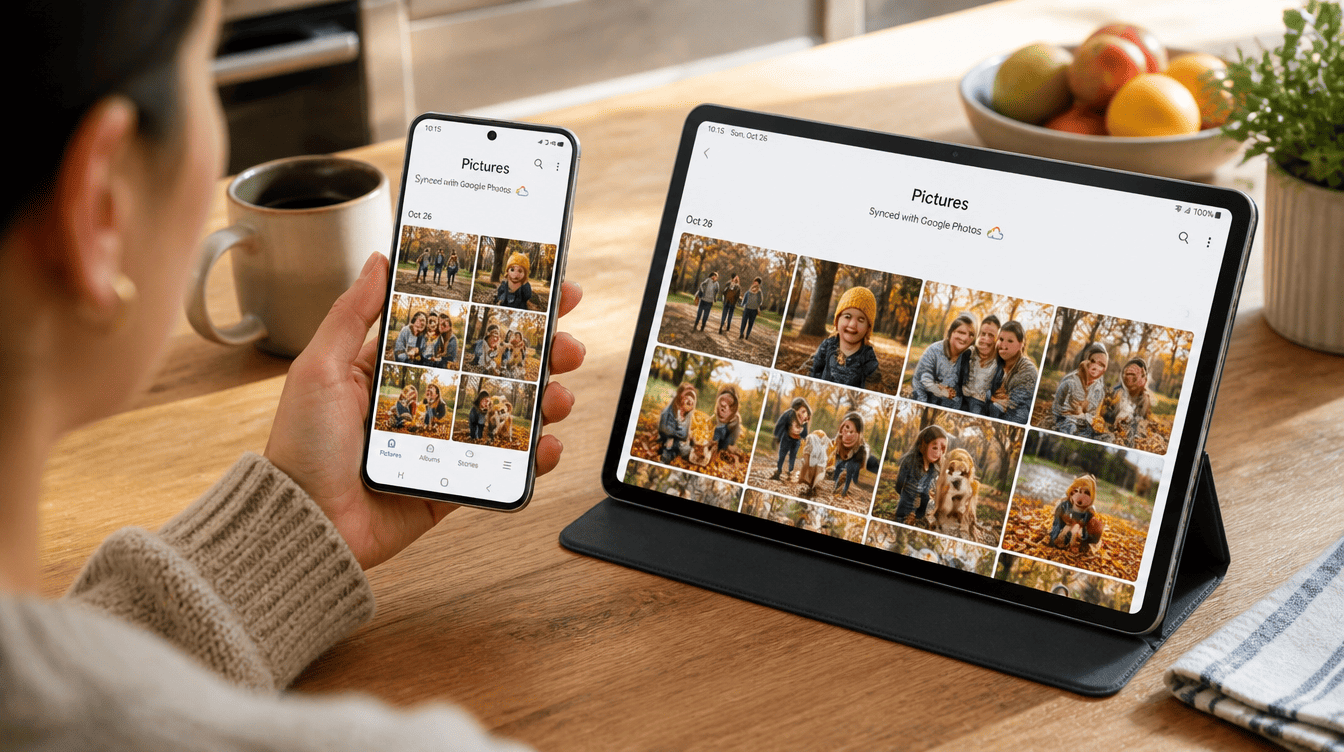
On November 10, 2026, Samsung confirmed that Samsung Gallery backup to Google is now built into the Gallery app on select Galaxy phones and tablets running One UI 9. In plain terms, the photo you snap of the kids at the pumpkin patch on your phone can appear in “Gallery” on the family tablet, with no extra app to install.
This matters because the old OneDrive link inside Gallery is gone. If you relied on it, your new photos have had nowhere automatic to go since the end of September. The new option uses the storage that already comes with your Google account, up to 15 GB free.
What you need before turning on Samsung Gallery backup to Google
The setup is short, but a few pieces have to be in place first. Check these before you open the app and set up Samsung Gallery backup to Google:
- A supported Galaxy device on One UI 9. Samsung is starting with a select group of phones and tablets and adding more in phases. It has not published a full model list.
- Both accounts signed in. Your Samsung account and your Google account should already be on the device. No separate cloud sign-up is needed.
- Free space in your Google account. Gallery uses the same pool as Gmail, Google Drive and Google Photos, so a nearly full inbox means less room for pictures.
- Your market. Samsung says availability depends on the country you are in, so the option may not appear everywhere yet.
How to turn on Gallery sync in 4 steps
Samsung gives you more than one way in. The settings route is the most reliable if you missed the pop-up card:
- Open the Gallery app on your Galaxy phone or tablet.
- Tap the Cloud icon, or tap Get started if a tip card appears. You can also open the menu and choose Settings.
- Switch on Sync photos and videos.
- Follow the prompts on screen to confirm the Google account you want to use. If you pay for Google One, pick the account tied to that plan so you get the extra room.
Once the toggle is on, Samsung Gallery backup to Google runs in the background. New shots and clips head to your Google storage without you doing anything else.
Seeing the same photos on a tablet or new phone
This is where Samsung Gallery backup to Google earns its keep for households with more than one Galaxy device. On the second phone or tablet, sign in with the same Samsung and Google accounts, then flip on Sync photos and videos there too.
Gallery then shows previews of your synced library right away. The full-size files stay in the cloud until you tap one and download it, so a new phone does not have to pull down years of videos on day one. That is a real time saver when you are setting up a replacement device on a busy weekend.
When to use Free up space
Once Samsung Gallery backup to Google has copied your pictures to the cloud, a Free up space option appears in the sync settings. It deletes the full-size originals from the phone itself while leaving small thumbnails in Gallery, so your albums still look complete.
It is handy on a 128 GB phone that keeps nagging about storage. Just remember the trade-off: opening one of those photos later needs an internet connection. If you are heading somewhere with spotty signal, like a cabin trip, leave the favorites you want to show off on the device.
How the 15 GB of free storage gets used
Every Google account includes up to 15 GB at no cost, and Samsung Gallery backup to Google draws from that same allowance rather than getting its own bucket. Your email attachments, Drive files and anything already in Google Photos all count against the same total, and Samsung notes that what is left depends on how much you already use.
For a family that films a lot of 4K video, 15 GB can fill up quickly. Google One paid plans add more space, and the Samsung Gallery backup to Google feature will use it as long as you choose the matching account during setup.
Samsung Gallery vs Google Photos: what this is and is not
A common mix-up is thinking Gallery has turned into the Google Photos app. It has not. Gallery is still Samsung’s own app, and it now saves to the same Google storage that Google Photos uses. The two share space, not a library.
| Question | Gallery sync with Google storage |
|---|---|
| Separate app needed? | No, it works inside Samsung Gallery |
| Shows photos already in your Google account? | No, only items synced through Gallery after you turn it on |
| Delete a photo on one device? | It is removed from Google storage and your other synced Galaxy devices |
| Full-size files on a new device? | Downloaded only when you open them |
That delete behavior deserves a second look. If a teenager shares your account on a tablet and clears out “old” pictures, those photos vanish from your phone as well. Consider giving kids their own accounts, or keep a separate copy of the photos you cannot replace. Our guide on backing up Android photos to a PC with Quick Share covers one easy way to do that.
What happened to Samsung Gallery backup to OneDrive
The direct connection between Gallery and Microsoft OneDrive shut off on September 30, 2026. Nothing you uploaded before then was deleted. Those files are still waiting in the OneDrive app and on the OneDrive website, so you can sign in and download anything you need.
What you lose is the automatic upload of new pictures from Gallery to OneDrive. For most people, switching to Samsung Gallery backup to Google is the simplest way to fill that gap without changing how they browse their photos.
What Samsung has not explained yet
Samsung’s official announcement leaves a few gaps. It does not say whether Samsung Gallery backup to Google lets you choose which albums upload or whether everything in Gallery goes up at once. It also does not list which Galaxy models are in the first wave, or give a date for older phones. If you already use Google Photos and run into odd behavior with edited shots, our walkthrough on Google Photos edited photos not showing may help while the rollout settles.
Frequently asked questions about Gallery sync
Does Samsung Gallery sync with Google Photos?
Not directly. Gallery saves your pictures to the storage in your Google account, which Google Photos also uses, but your existing Google Photos library does not appear inside Gallery.
Can Samsung Gallery back up to Google Drive instead?
Gallery sync uses your general Google account storage, the same space shared by Drive, Gmail and Photos. Samsung has not described a way to pick a specific Drive folder.
Why can’t I find Sync photos and videos in Gallery?
Your device may not be in the first group. Samsung is starting with select One UI 9 phones and tablets, adding more in phases, and availability varies by country.
Should you switch on Samsung Gallery backup to Google?
If you were a OneDrive user, or you simply never set up any backup, turn it on today; it is only a few taps and protects the photos you care about most. People who already back up everything through the Google Photos app can skip it, since both would mostly be saving the same pictures to the same storage. Either way, the best backup is the one that is running before your phone takes a swim.