
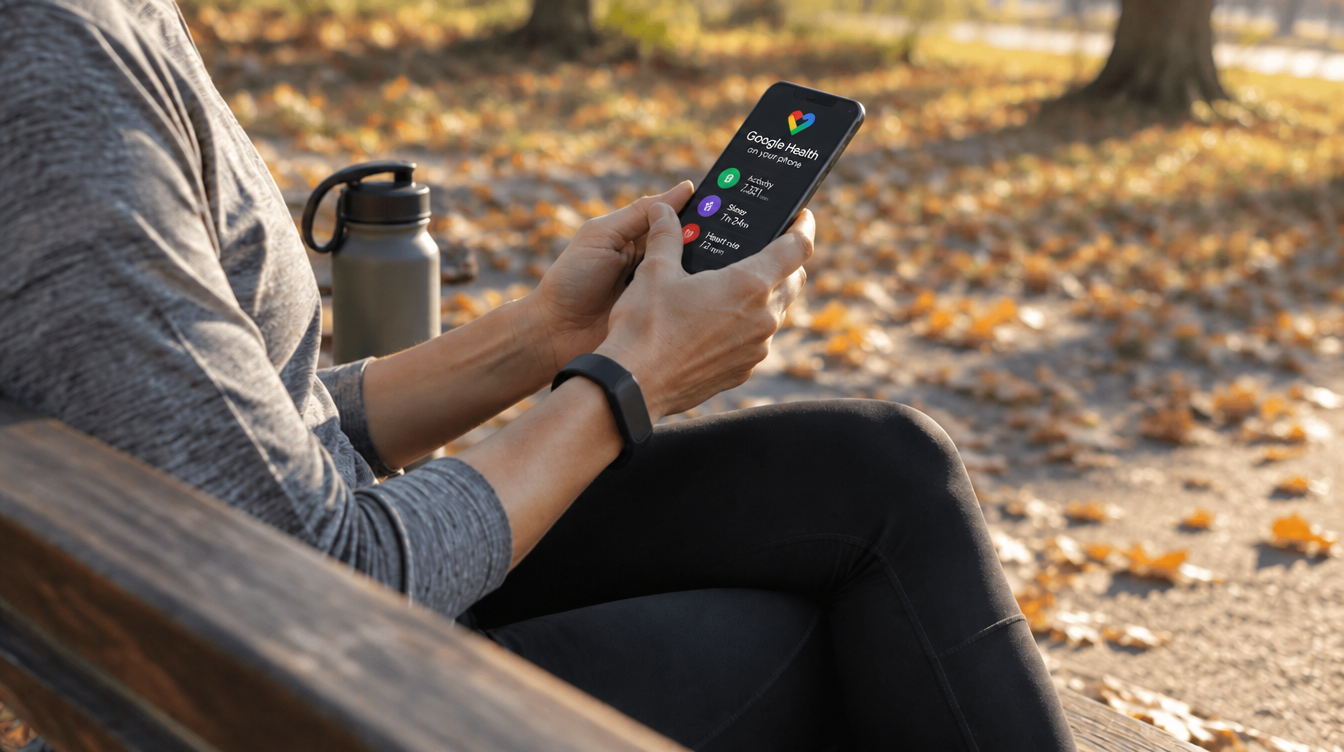
As of November 9, 2026, Google’s help pages describe three separate options for anyone who wants to turn off AI Coach in Google Health, and they do very different things. Picking “No Coach insights” only clears the messages on your Today screen, while the full off switch stops Coach from collecting and processing your data from then on.
Google’s formal name for this feature is Google Health Coach, the Gemini-built assistant bundled with a Google Health Premium subscription. Switching it off and canceling Premium are two different jobs, handled in two different menus, so it pays to know which one you are after before you start tapping.
What you need before you turn off AI Coach
Coach only shows up on accounts that meet a few conditions: a Fitbit or Pixel Watch, an age over 18 and an active Premium plan. Google’s Coach setup page names 37 countries, the United States, the United Kingdom, Canada and Australia among them, and the company warns that some features may appear in English only.
Everything below happens inside the Google Health app on your phone. Labels can drift a little between app versions, and Google’s own pages use both “Coach” and “Coaching” for the same menu, so tap the closest match if yours reads slightly differently. Still looking at the old Fitbit app? Finish the Fitbit app update to Google Health first.
Three ways to quiet Coach, and what each one changes
| Option | What stops | What carries on |
|---|---|---|
| Turn Coach off completely | New data collection and processing by Coach | Old conversations, until you delete them |
| Set Today messages to No Coach insights | Coach messages on the Today screen | Coach, Ask Coach and your stored data |
| Turn off Coaching push notifications | Coaching alerts on your phone | Coach inside the app |
How to turn off AI Coach completely
Use this route when you want the assistant gone, not merely quieter.
- Open Google Health and tap your profile picture.
- Tap Google Health settings.
- Tap Coach, scroll to the bottom and tap Turn off.
- On the Feature privacy controls page, tap Google Health Coach.
- Tap Turn off, then confirm by tapping Turn off again.
The change applies going forward. Google’s page on managing Coach data and personalization is the official reference and is worth a quick read before you commit, since it spells out what gets left behind.
Keep Coach but clear your Today screen
Plenty of people are happy to ask a question now and then yet would rather not get a pep talk every time they open the app. This setting is built for them.
- Tap your profile picture, then Google Health settings.
- Tap Coach, then Coach messages on Today.
- Choose No Coach insights.
- Tap the back arrow to save your choice.
Nothing gets deleted here, and Ask Coach keeps working. Coach also stays active in the Fitness and Sleep sections, so this is a tidier home screen rather than a real exit.
Only the pings bother you? Go to your profile picture, then Google Health settings, then Push notifications, and flip Coaching off. That screen also covers low battery warnings, step-goal milestones and weekly activity summaries, so you can be choosy about what still buzzes your phone.
What happens to your data when you turn off AI Coach
When you turn off AI Coach, new collection ends, but the archive does not clear itself. Conversations stay in your history even after you withdraw consent or wipe a data category, so they need a separate cleanup.
- One chat: Open Ask Coach, tap History, tap More on that conversation, then Delete.
- All chats: Tap your profile picture, then Google Health settings, Manage data and privacy, Manage your data, Coach activity, Conversations and Delete all conversations data.
If the app has location access, change that permission to “Don’t allow” on Android or “Never” on an iPhone. Google says coarse location is erased automatically after 30 days, and that human reviewers only see conversations when you send feedback or explicitly agree to research use.
One gap to flag: Google’s help pages do not lay out the exact steps for switching Coach back on later. They do stress that Coach offers informational guidance rather than medical advice, which is a fair reminder for any family leaning on it to make sense of a health metric.
Turn off AI Coach or cancel Premium?
Deciding to turn off AI Coach changes how one feature behaves. Canceling ends the subscription, and Google’s pages do not say whether other Premium perks keep working once Coach is switched off, so anyone who signed up mainly for Coach may find canceling the cleaner choice.
On Android, tap your profile picture, then Google Health Settings, Google Health Premium and Cancel membership, and confirm on Google Play. Removing the app from your phone cancels nothing. Access runs until the billing period ends, Coach data sticks around after that and must be deleted by hand, and Google notes that most Play purchases are not refunded. Google AI Pro and Google AI Ultra subscribers get Premium at no extra cost, though a Fitbit or Pixel Watch is still required.
Frequently asked questions about Google Health Coach
How much does Google Health Premium cost after the free trial?
Google lists $9.99 a month once its 3-month trial ends, and the trial renews automatically. Each account gets one trial.
Why is Google Health AI Coach not working?
Check that Premium is active, that you live in a supported country and that you opted in through your profile settings. Google’s troubleshooting page also suggests a stable connection and restarting the app.
Can I cancel Google Health Premium from my phone?
Yes, Android users can start the cancellation inside the app and finish it on Google Play. Deleting the app alone leaves the subscription running.
Should you turn off AI Coach in Google Health?
Turn off AI Coach fully if you never use it or feel uneasy about an assistant reading your fitness and sleep history. Pick No Coach insights if all you want is a calmer home screen, and take the same pruning approach to other assistants with our guide to turning off Help Me Write in Gmail. If Coach is the only reason you pay for Premium, cancel the plan instead, because a feature you have silenced is an odd thing to keep funding.