
There is no single switch that brings back the old Firefox look, but you can get surprisingly close in about five minutes. Firefox 157 arrived on September 29, 2026 with Mozilla’s biggest visual refresh in years, and the only official way back Mozilla lists is for the sidebar. The rest comes down to a few settings that shrink, simplify and rearrange the new design until it feels familiar again.
If the update caught you off guard, you are far from alone. Below are the four changes that do the most to restore the old Firefox look, plus the limits you should know before you start poking at hidden settings.
What Firefox 157 changed on your screen
Mozilla describes the update as a refinement rather than a reinvention. In practice, the toolbars, tabs, menus, sidebar, New Tab page and Private Browsing all picked up new colors, icons and spacing. The official Firefox design announcement says the goal was a consistent feel on desktop and mobile without slowing the browser down.
Here is how each change lines up with what you can undo on the way back to the old Firefox look.
| What changed | Can you dial it back? |
|---|---|
| Roomier tabs and toolbars | Yes, with Compact window density |
| New sidebar for everyone | Yes, through about:config until the end of 2027 |
| New built-in light and dark themes | Yes, pick System, Light, Dark or Alpenglow |
| Toolbar button layout | Yes, with Customize toolbar |
| Overall icons and colors | No official switch |
Before you try to restore the old Firefox look
Check that you are on Firefox 157 or newer by opening the menu and choosing Help, then About Firefox. The current build is 157.0.1, released October 6, which also fixed a bug that left the sidebar frozen on its Bookmarks or AI Chatbot view for some people.
One of the steps below uses about:config, the browser’s advanced settings page. Firefox shows a risk warning when you open it for good reason: changing the wrong value there can hurt stability, security or speed. Change only the setting named here and leave everything else alone.
4 ways to get the old Firefox look back
1. Switch on compact mode
The extra padding around tabs is the change most people notice first. Compact mode trims that spacing so web pages get more of the window, which makes it the biggest single step toward the old Firefox look. In Firefox 157 it finally has a proper home in Settings.
- Click the menu button and choose Settings. Mac owners can reach the same place from the Firefox menu at the top of the screen.
- Pick Appearance from the list on the left.
- Under Window density, select Compact.
- Close the Settings tab. Nothing else to save.
Mozilla’s announcement also mentions an auto-compact option meant for smaller screens, which is handy on a family laptop with a modest display.
2. Bring back the previous sidebar
Firefox 157 turned on the updated sidebar for everyone and removed the Show sidebar option from Settings. If you relied on the older one, Mozilla left a back door in its Firefox 157 release notes.
- Type about:config in the address bar, press Enter and accept the warning.
- Search for sidebar.revamp.
- Click the toggle so the value reads false.
- Restart Firefox if the change does not show up right away.
There is a trade-off: flipping this value also switches off vertical tabs. If you have grown fond of tabs running down the side of the window, skip this one.
3. Pick a quieter theme
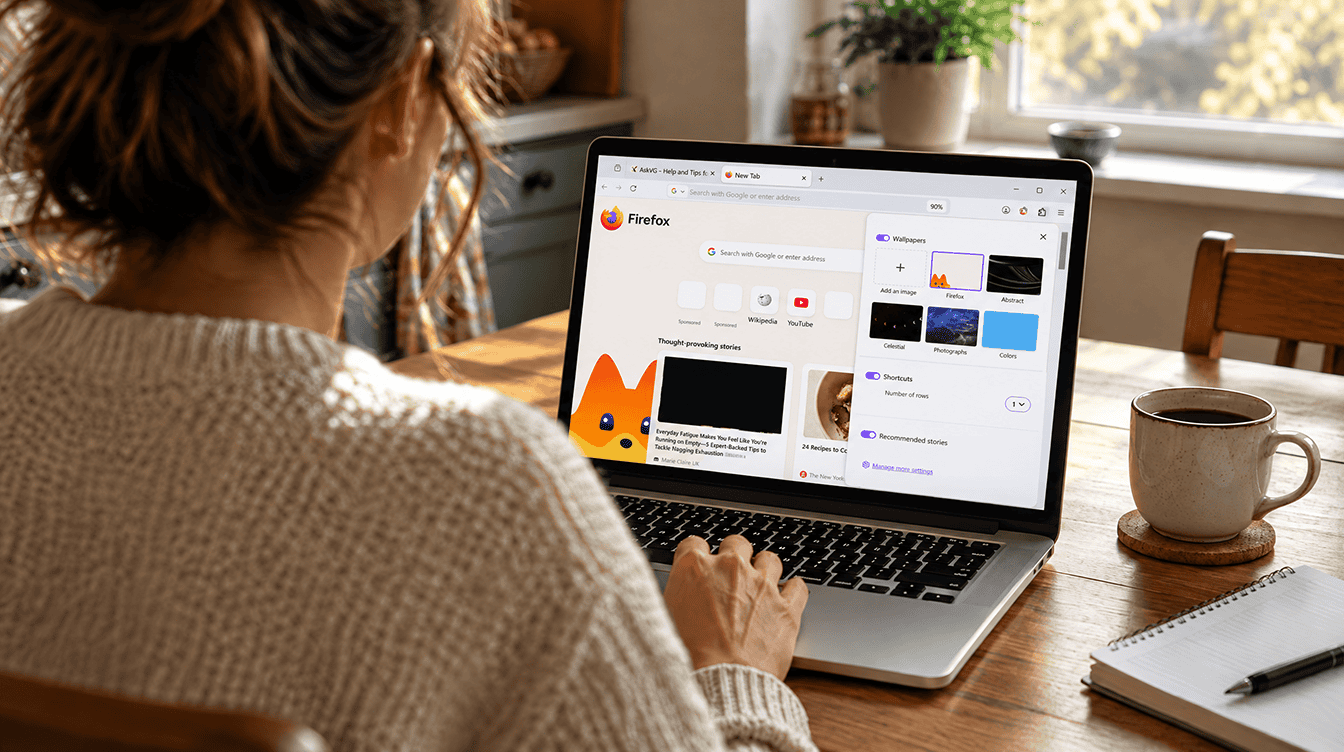
The redesign added fresh built-in themes in light and dark versions, along with a theme picker and wallpapers. If the colors feel loud, a plain built-in theme gets you closer to the old Firefox look.
- Open the menu and choose Extensions and themes, then Themes.
- Find System, Light, Dark or Alpenglow and click Enable.
- If a theme you added yourself is active, click Disable on it and Firefox falls back to the default System theme.
A quicker route also exists: the customize button tucked into the lower-right corner of any new tab opens an Appearance section with the same themes.
4. Rearrange the toolbar the way you had it
Muscle memory is a big part of what made the old Firefox look feel like home. If buttons ended up somewhere unexpected, open the menu, go to More tools and choose Customize toolbar. From there you can drag icons back into the spots your hands expect, then click Done.
Smaller Firefox 157 changes that can feel strange
Some of what feels different has nothing to do with colors or icons. These behavior changes came in the same release:
- The Tab key now jumps straight to the address bar and search box text fields. To reach the search engine button, press Shift+Tab instead.
- Amazon is gone from the built-in search engines. You can add it back as a custom engine in search settings.
- Pop-up boxes from websites, such as alerts, date pickers, color pickers and autofill lists, now follow each page’s light or dark scheme.
None of these can be reversed with the steps above, so it helps to know they are intentional rather than a glitch.
Limits worth knowing
Be realistic about what is possible. Even with all four tweaks, the new icons and color palette stay, because Mozilla has not offered a full return to the old Firefox look. The sidebar setting is also on a clock: Mozilla says sidebar.revamp will stay available until the end of 2027, so treat it as a bridge rather than a permanent fix.
If someone in the house is still running Firefox 156 or older, compact mode lives in a different place and Mozilla labels it Compact (not supported) there. Updating that computer is the simpler path. For more ways to tidy up a browser that changed under you, see our guide on how to turn off Gemini in Chrome.
Frequently asked questions
Can you turn off the new Firefox design?
Not completely. Mozilla offers no setting that removes the whole redesign, but compact mode, a basic theme and the sidebar.revamp option bring back much of the earlier feel.
How do you enable Firefox compact mode?
In Firefox 157 and later, open Settings, choose Appearance and set Window density to Compact. The change saves on its own.
Does Firefox still support compact mode?
Yes. It is now a regular option in Settings rather than a hidden one, and Mozilla added an auto-compact option for smaller screens.
Is chasing the old Firefox look worth the effort?
If the new spacing is the main annoyance, turn on compact mode and stop there; it takes thirty seconds and covers most complaints. Reach for the sidebar setting only if your daily routine depends on the older panel, since that option disappears after 2027. Everyone else can give the redesign a week, because the familiar parts of Firefox are still underneath the fresh paint.