
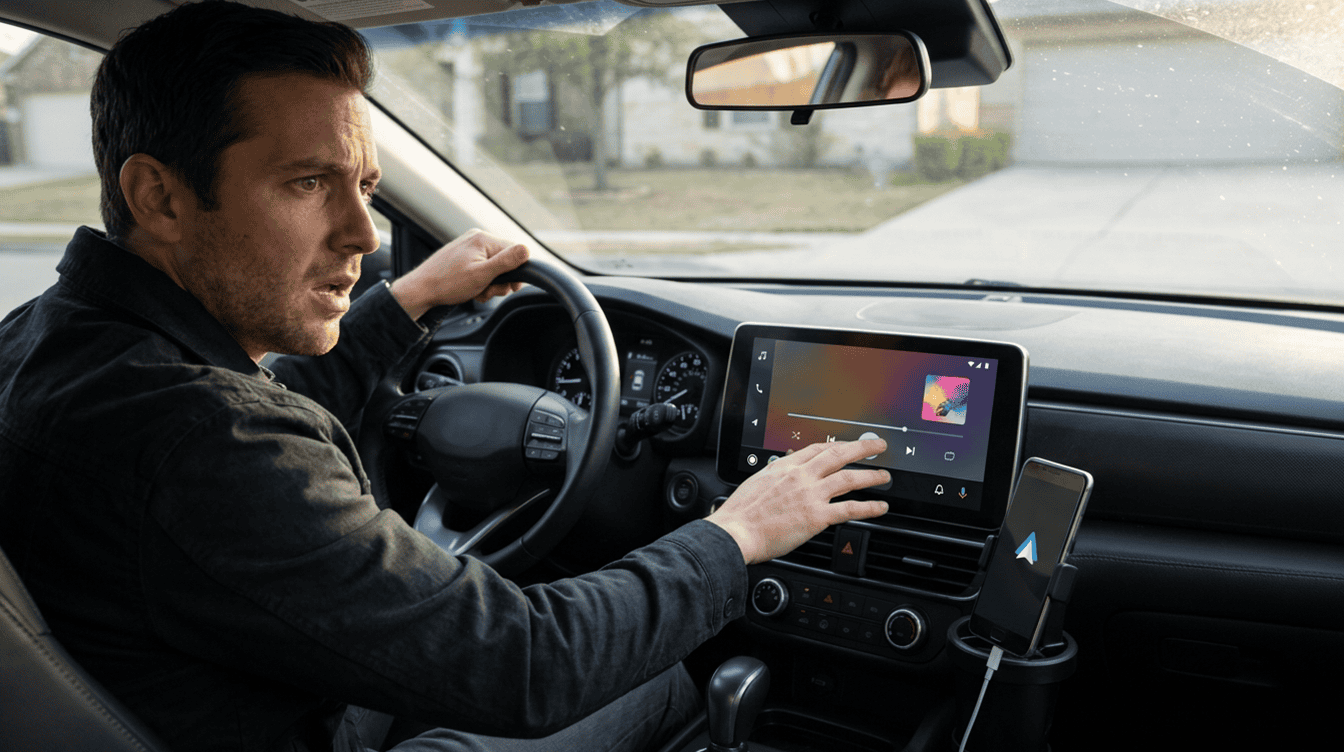
Turning off autoplay in Android Auto used to mean exactly that: you got in, the dashboard woke up, and the car stayed quiet until you picked something. Lately, a lot of drivers have found their Android Auto autoplay settings being ignored, with a song or podcast bursting out for a few seconds before it cuts off again.
Google has now acknowledged the glitch and says a fix is rolling out. Until it reaches your phone, a few quick checks of your Android Auto autoplay settings can cut down on the surprise concerts.
Why music plays even with autoplay switched off
You start the car, Android Auto connects, and audio starts on its own even though the feature is off. For some people it stops after a few seconds, which makes it feel random rather than like a forgotten setting.
According to Google, the culprit is the car being sent what it calls “unsolicited play commands” during startup. The company says it is shipping a fix so those commands are no longer sent when autoplay is off. So your choice was saved; something else overrode it the moment phone and car connected.
What Google is changing with autoplay
The startup fix is the headline, but Google described two smaller tweaks in the same announcement, posted to the Android Auto community on Reddit:
- No more forgotten apps. Google says apps you haven’t opened recently, or have never used at all, will stop being picked when autoplay kicks in.
- A one-tap off switch. If you keep pausing playback right after it begins, Android Auto is supposed to notice and offer a single-tap notification to turn autoplay off.
Google has not said which Android Auto version carries these changes, and the rollout is gradual, so two phones in the same driveway may get them on different days.
6 things to try with your Android Auto autoplay settings
These are listed easiest first. Do them while parked, not at a red light.
- Confirm the switch is really off. Android Auto lives inside your phone’s settings rather than as a normal app. Open the Settings app, type “Android Auto” into the search bar and tap Android Auto Settings. Look for the autoplay option and make sure it is turned off. Give your Android Auto autoplay settings a fresh look even if you changed them months ago.
- Update Android Auto and Google Play Services. Google’s own help pages ask you to keep both current before reporting a problem, and staying current is the likeliest way the fix will reach you. Check for pending updates to each, then reconnect to the car.
- Restart the phone and the car’s screen. Close your open apps, reboot the phone, and restart the infotainment system too. Google lists restarting the car unit as a standard step when Android Auto misbehaves.
- Watch for the new prompt. Once the update lands, pausing the music a few times right after it starts should trigger the one-tap option to disable autoplay. Accept it, and Android Auto should remember.
- Forget the car and pair again. Unplug the phone, go to Settings > Connected devices > Connection preferences > Android Auto > Previously connected cars, open the menu icon at top right and choose Forget all cars. Plug back in and set things up fresh.
- Send Google a bug report. If nothing changes, Google’s Android Auto bug report guide walks through capturing logs from the car screen. It takes a few minutes and requires turning on developer options, so switch them back off afterward.
If the dashboard won’t connect at all, start with Google’s general Android Auto troubleshooting page instead.
Who is most likely to notice the bug
Anyone who turned autoplay off on purpose feels this most: parents with a sleeping toddler in the back, drivers who join a call as they pull out, or anyone who likes a quiet start.
Shared family cars are another hot spot. When several phones connect to one dashboard, each with its own Android Auto autoplay settings and apps, it is hard to tell whose phone fired off the audio. Check every phone that pairs with the car.
A cluttered phone makes any connection problem feel worse, so a tidy-up from our guide on how to refresh and speed up your Android phone is a sensible side project while you wait.
What Google hasn’t said yet
There is no version number to look for and no finish date for the rollout. Google also hasn’t said how long the bug has existed or whether certain cars or music services were hit harder. If unwanted audio still plays in a couple of weeks, with everything updated and your Android Auto autoplay settings off, that is the moment to send a bug report.
Frequently asked questions about Android Auto autoplay
Why does Android Auto start playing music when autoplay is off?
Google says the car was being sent unwanted play commands during startup, which overrode the setting. A fix that stops those commands is rolling out now.
Which Android Auto version fixes the autoplay bug?
Google has not named a version. It says the fix is rolling out gradually, so keeping Android Auto and Google Play Services updated is the best way to get it.
Do I need to change my Android Auto autoplay settings again after the update?
Not usually. If autoplay was already off, the fix should simply make Android Auto respect that choice, though it is worth checking once after updating.
When to stop fiddling and let the Android Auto fix arrive
Spend five minutes on the first three steps: check your Android Auto autoplay settings, update, and restart. If the music still sneaks in after that, the problem is almost certainly the startup bug Google is fixing, and more tinkering won’t beat the rollout. Leave it a week or two, then file a report if your drive still opens with an uninvited soundtrack.