
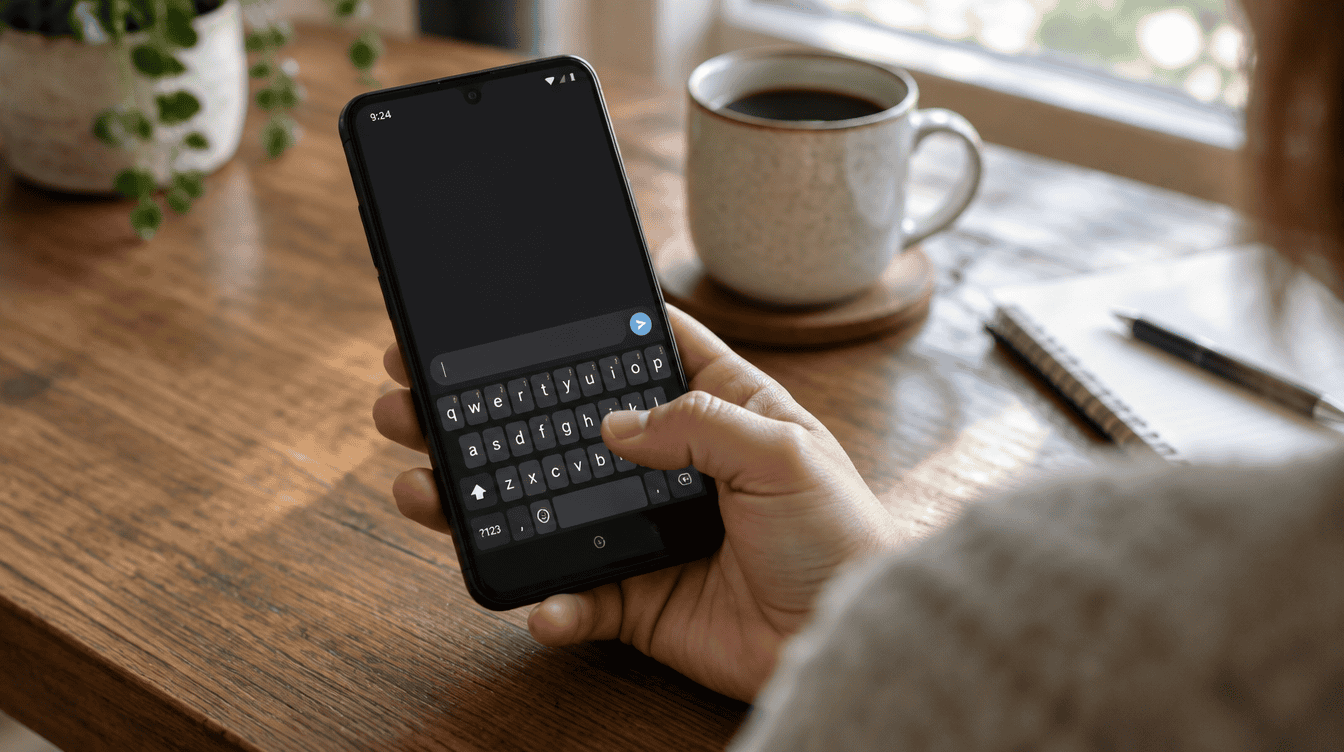
A keyboard that refuses to capitalize sounds like a small annoyance until you need to type a password, a street address or your kid’s teacher’s name. That is the situation some Android owners are in right now with the gboard shift key not working bug: tap Shift, and nothing happens.
The good news is that a few quick steps bring the key back, at least for a while. The less good news is that the problem tends to return, and Google has not yet said whether a fix is on the way.
What goes wrong when Shift stops responding
The symptom is simple. You tap the Shift key to type an uppercase letter, and Gboard keeps typing in lowercase. You might first spot it at the start of a text message, or when a password field needs an uppercase character.
What makes the gboard shift key not working problem so frustrating is the pattern. A fix seems to work, the keyboard behaves for a few hours, and then Shift goes dead again, sometimes the next day.
Where the Gboard Shift key not working reports are coming from
Complaints have shown up on Reddit in both the Gboard community and a Pixel phone community, with affected owners using Pixel and Xiaomi phones. Other Android brands could be hit as well, since Gboard runs on phones from many makers.
There is one useful clue. The affected phone the outlet looked at was running a beta build of Gboard, and at least one Reddit user with the problem said they were also a beta tester. On the current stable version, the outlet was not able to make the bug appear. That points toward the beta, though nobody has confirmed it as the cause.
Things to try, easiest first
If the gboard shift key not working bug has hit your phone, work down this list.
- Restart the phone. Press and hold the Power button, then tap Restart. It takes the least effort.
- Force stop Gboard. Open Settings, tap Apps, then Gboard (tap See all apps if it is not listed), and choose Force stop on its App info screen. The keyboard reloads fresh the next time you open a text field.
- Clear the Gboard cache. On that same App info screen, tap Storage & cache, then Clear cache. This only removes temporary files. Pairing this with a force stop is the combination that brought Shift back on at least one affected phone.
- Switch layouts and back. Changing to a different keyboard layout in Gboard and then returning to your usual one has also restored the key for some people.
- Leave the beta. If none of the above lasts, check whether you are a Gboard beta tester. Moving back to the stable release is the step most likely to stop the bug from returning.
Skip “Clear storage” unless everything else fails. That option wipes the app’s data, which can mean losing personal tweaks you have built up over time. For broader slowdowns, our guide on how to refresh and speed up your Android phone covers more cleanup ideas.
How to leave the Gboard beta program
Many people join an app beta years ago and forget about it. Google’s own instructions for leaving an app’s beta program work for Gboard too:
- Open the Google Play Store and tap your profile picture in the top right.
- Go to Manage apps & devices, then Beta.
- Find Gboard and tap it to open its page.
- In the section labeled “You’re a beta tester,” choose Leave, then confirm with Leave once more.
- Uninstall the beta version of Gboard, then install the regular version from the Play Store.
Two catches are worth knowing. Google warns that leaving a beta and uninstalling it can wipe customizations, and your tester slot may be handed to someone else, so rejoining later is not guaranteed. If Gboard does not appear in the Beta list at all, you are already on the stable release, and something else is behind your gboard shift key not working issue.
What Google has said so far
Nothing yet. Google has not publicly acknowledged the gboard shift key not working reports, explained what triggers them or shared a timeline for a fix. We also don’t know whether a specific beta version is to blame or how many phones are affected.
Bugs like this usually get patched quietly through a Play Store update. Keeping Gboard updated is the easiest way to pick up a fix the moment it arrives. For another example of an Android glitch that crept in with an update, see our look at Android Auto autoplay settings being ignored, which follows a similar troubleshooting path.
Frequently asked questions about Gboard capital letters
Why can’t I type capital letters on Gboard?
Most likely you are running into the gboard shift key not working bug that some Pixel and Xiaomi owners have recently reported. Restarting the phone, force stopping Gboard and clearing its cache can bring capitals back for a while.
Is the Gboard beta causing the Shift key bug?
Possibly, but it is not confirmed. The affected phones identified so far were running the beta, and the problem could not be reproduced on the stable release, so leaving the beta is a sensible step if the bug keeps returning.
Will clearing the Gboard cache delete my settings?
Clearing the cache only removes temporary files. The Clear storage option is the one that wipes app data, so save that for a last resort.
When to stop troubleshooting and wait for a Gboard fix
If a restart and a cache clear fix the gboard shift key not working problem for you, that is a fine stopgap while Google sorts things out. Beta testers who keep losing capitals should leave the program now rather than repeat the same fixes every morning. Everyone else can keep Gboard updated and wait, because a keyboard that cannot shout is still a keyboard that works.