

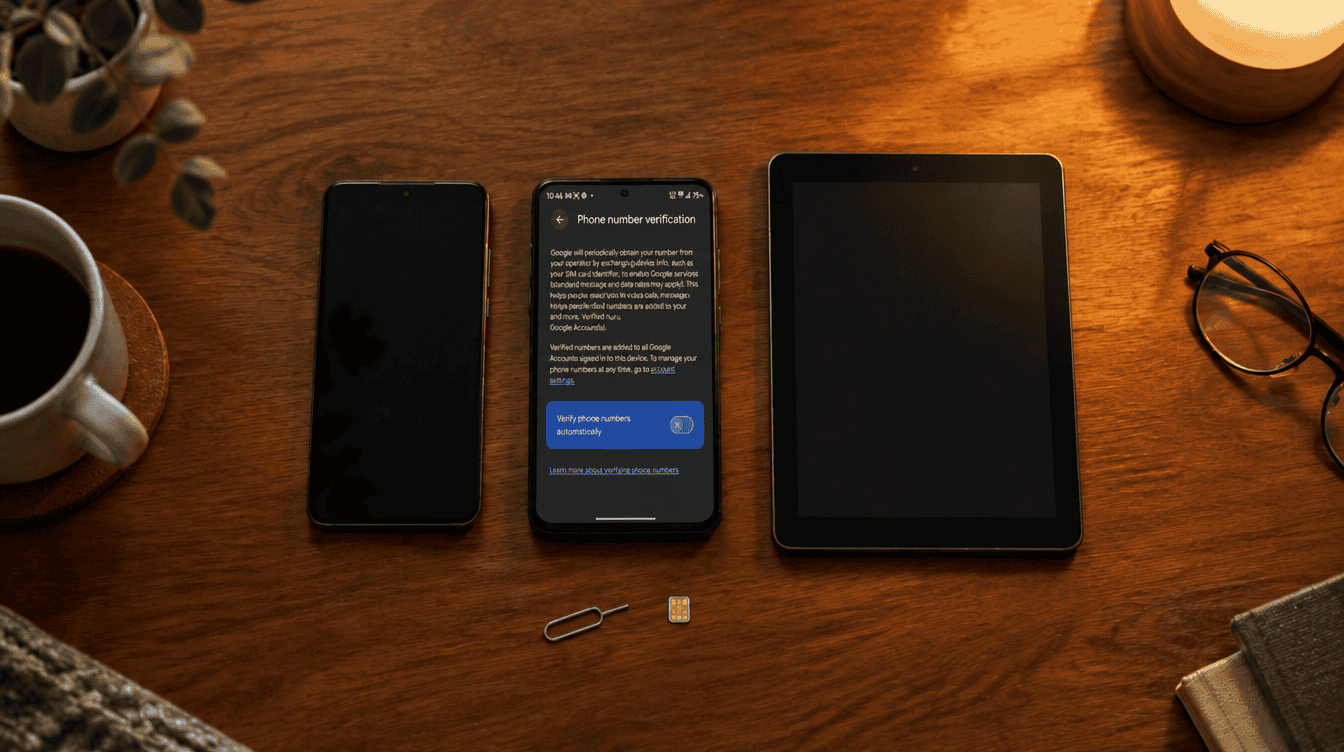
Yes, you can switch it off: the Google phone number verification setting lives under Settings, then Google, then All services, and takes about a minute to change. The catch is that it ships turned on, and each verified number on the handset gets attached to all of the Google accounts logged in there, even ones you add later.
For a family phone that might hold a personal account, a work login and a spare account for the kids’ tablet apps, that quiet linking deserves a closer look. Below is how the feature works, how to turn it off, and how to pull a number back off an account where you never wanted it.
What the Google phone number verification setting actually does
When you first set up an Android phone, Google checks the number tied to your SIM. After that, both Google and your mobile carrier recheck it from time to time in the background. According to Google’s Android help page on phone number verification, a confirmed number is used for a long list of everyday things:
- Signing in and recovering your Google account
- Sharing your location in an emergency
- Finding or locking the phone if it goes missing
- RCS chat and video calls
- Quick Share between nearby devices
None of that is sinister. The part that surprises people is the reach. Google says the number gets attached to all accounts on the handset, so a work account or a throwaway account you created for a game suddenly carries your personal mobile number too. Google also notes that carrier charges may apply when the check runs.
What you need before you start
The Google phone number verification setting only exists on the phone itself. You will not find it on the Google account website, so have the Android device in hand. Menu wording can differ slightly from one phone maker to another, but the path below follows Google’s own instructions.
| What you want to do | Where to do it |
|---|---|
| Stop automatic number checks | Phone Settings, Google, All services |
| Control Better sharing on Google | Phone Settings, Google, your account, Personal info |
| Remove a number already on an account | Google account Personal info, Contact info, Phone |
How to turn google phone number verification off
- Open the Settings app and tap Google. Some phones label this Google services and preferences.
- Tap the All services tab at the top.
- Scroll to the Privacy & security group and tap Phone number verification.
- Flip the switch off so the phone stops checking your numbers on its own.
That covers the device side. If you share the phone with a teenager or a partner who also signs in, the Google phone number verification setting applies to the whole handset, so everyone on it is affected by the change.
How to remove a phone number from a Google account
Turning the switch off is about what happens next. Google’s help page does not say that flipping it also strips numbers that were already added, so it is safest to check each account by hand.
- In phone Settings, tap Google and pick the account you want to check.
- Tap Manage your Google Account, then the Personal info tab.
- Under Contact info, tap Phone and select the number.
- Remove it from that account, or keep it and simply turn Better sharing on Google off.
You can reach the same screen from a computer at your Google Account’s Personal info page. Repeat this for every account on the phone, especially work or school logins.
What Better sharing on Google means
Better sharing switches itself on whenever verification is active. It lets Google services use your number for video calls, messages and notifications. If several accounts are signed in, Google limits it to just one of them, and you can change which one per number from the Phone screen above.
What you might lose by switching it off
Here is where we would slow down before tapping. Google lists sign-in help, account recovery, emergency location, finding a lost phone, RCS messaging and Quick Share among the features that lean on a verified number. Google has not spelled out which of those stop working, or how they degrade, once the Google phone number verification setting is off.
A sensible middle ground for most families: leave verification on for the main account on a parent’s phone, where recovery and emergency location matter most, and clean the number off secondary accounts instead. A good recovery option still matters either way, so pair this with a Google passkey on your phone or computer for a sign-in method that does not depend on your mobile number at all.
Common snags with this setting
You cannot find the menu. Look for Google services and preferences instead of Google, or type “phone number verification” into the search bar at the top of Settings.
A new account picked up your number anyway. That is expected while verification is on. Google says accounts and numbers added later get linked too, so change the Google phone number verification setting before adding a fresh account if you want that account kept separate.
You have two SIMs. Google’s wording covers all numbers on the device, so a dual-SIM phone can attach both lines to each signed-in account.
Frequently asked questions about phone number verification
Should google phone number verification be on or off?
For the main account on your own phone, leaving it on keeps recovery, emergency location and RCS chat working as Google intends. Turn it off if you share the device or sign in to work and personal accounts that you want kept apart.
Can I turn off the Google phone number verification setting from a computer?
No. Google says the switch only exists in the Android device settings. A computer can still remove a number that is already on an account through the Personal info page.
Does turning it off remove my number from Google?
Google does not say it does. Check Contact info, then Phone, on each account and delete any number you do not want there.
Should you change the Google phone number verification setting?
If one person uses the phone with one account, leave the Google phone number verification setting alone and enjoy easier recovery. If the phone juggles work, school or shared family accounts, spend two minutes turning it off and scrubbing the number from the accounts that do not need it. Your number should go where you send it, not wherever Google finds a login.