
A text pops up asking you to confirm a Google sign-in you never started, and suddenly everyone at the dinner table wants to know whether their own accounts are safe. A passkey is the simplest answer Google has for that moment, and on October 8, 2026, the company used Cybersecurity Awareness Month to nudge everyone toward one. The good news: Google passkey setup takes only a few taps on a phone or computer you already own.
Instead of typing a password, you confirm it is you the same way you unlock your device, with a fingerprint, a face scan or your screen PIN. Google says that biometric data never leaves your device, and because there is no password to type, a fake login page has nothing to steal. Passkeys are built to resist phishing, including the fake login pages scammers lean on.
What you need before Google passkey setup
Most phones and laptops from the last few years already qualify for Google passkey setup. Google lists these minimums on its passkeys help page:
| Device or app | Minimum version |
|---|---|
| Android phone | Android 9 |
| iPhone | iOS 16 |
| Windows PC | Windows 10 |
| Mac | macOS Ventura |
| Chromebook | ChromeOS 109 |
| Browser | Chrome or Edge 109, Firefox 122, Safari 16 |
| Hardware security key | Any key that supports FIDO2 |
A few switches need flipping first. Your phone must have a screen lock turned on, since that lock is what guards the passkey. Turn on Bluetooth if you plan to use your phone to approve sign-ins on a computer. On an iPhone, iPad or Mac, iCloud Keychain has to be on so the passkey has somewhere to live. Update your system and browser, and avoid Incognito windows, where some browsers block passkeys.
How to create a passkey for your Google account
The device you use becomes the one that holds the passkey, so start on the phone or laptop you carry every day.
On an Android phone or iPhone
- Open a browser and go to g.co/passkeys, the short link Google shared in its announcement.
- Tap Create a passkey.
- Follow the prompts on screen.
- Approve with your fingerprint, face or screen lock PIN.
On an iPhone, that is why iCloud Keychain needs to be on: it is where the new passkey gets saved. Once you finish, the passkey shows up in your account’s sign-in options, which is also where you go later to remove it.
On a Windows PC, Mac or Chromebook
The flow on a computer matches the phone version: visit myaccount.google.com/signinoptions/passkeys, choose Create a passkey and follow the prompts. The computer then asks you to confirm with whatever you normally use to unlock it, such as a face scan, fingerprint or PIN. Only do this on a computer that belongs to you, not the shared family desktop in the den (more on why below).
On a hardware security key
Google passkey setup also works with a FIDO2 key. Start on the same Passkeys page, pick Use another device and follow the instructions on screen. One catch: a key you added to your account before May 2023 may have to be removed first and then added again as a passkey.
Signing in once the passkey is ready
Once your Google passkey setup is done, sign-ins get shorter. Type your email address and pick the passkey from the list that appears. Your device asks for a fingerprint, face or PIN, and that is the whole login.
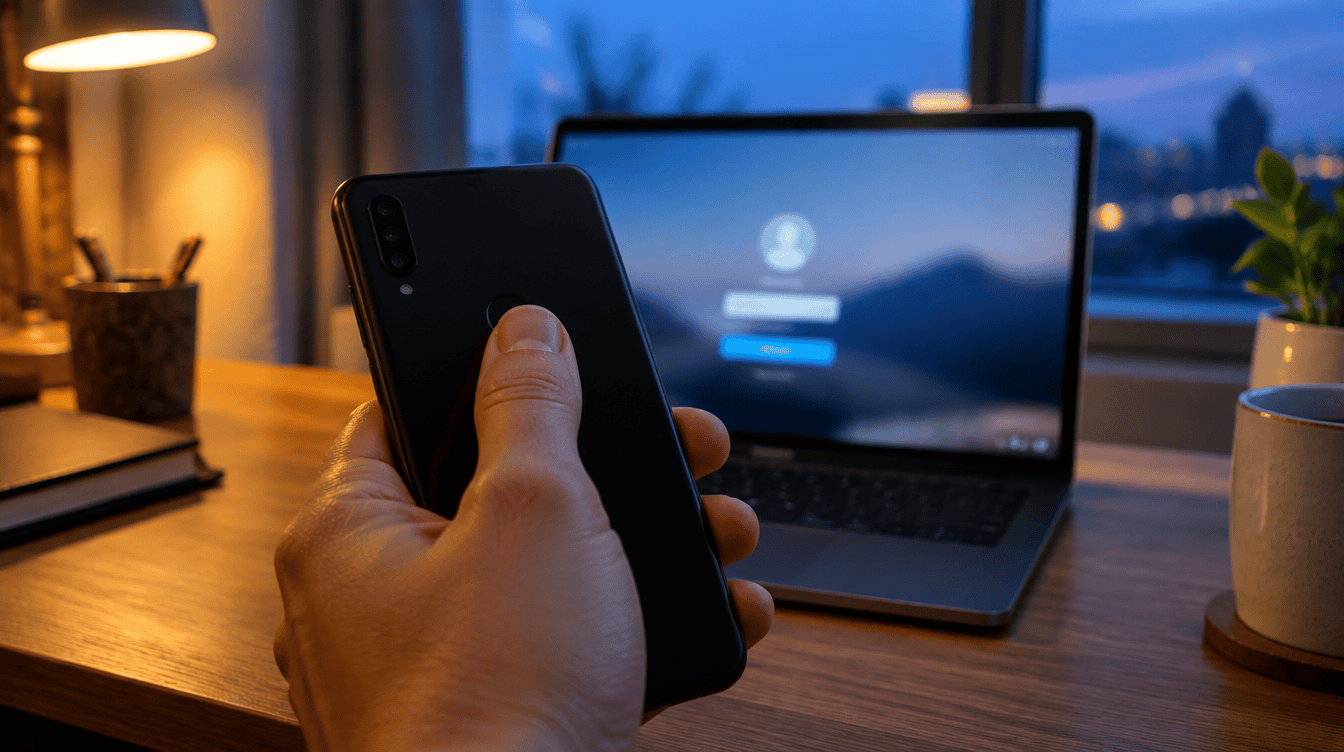
Borrowing a laptop that does not hold your passkey works too. Click Try another way, choose Use your passkey, and a QR code appears. Point your phone’s camera at it, approve on the phone, and the laptop signs in. This is the step that needs Bluetooth switched on.
Prefer to keep typing your password first? Open Security & sign-in in your Google Account, find How you sign in to Google, and switch off Skip password when possible. Google will then ask for the password before it offers the passkey.
Google passkey setup on shared and family devices
This is the part families should read twice. Anyone who can unlock a device that holds your passkey can get into your Google account, even if you signed out of Gmail on that device. A tablet whose PIN the kids all know is the wrong place for a passkey.
- Give each person their own. Every family member should do their own Google passkey setup on their own phone, not on a parent’s.
- Use the QR code on shared machines. Sign in by scanning with your personal phone instead of saving a passkey to the family computer.
- Check school and work accounts. A school or employer may block passkey-only sign-in. Those accounts can still use a passkey for 2-Step Verification, recovery or sensitive actions.
If you lean on the iPhone’s built-in password app, our look at how Apple Passwords in iOS 26 stacks up against third-party managers explains how Apple’s own app handles saved logins on your iPhone.
When Google passkey setup is not working
A common snag after starting Google passkey setup is a prompt that spins forever or a button that does nothing. Work through these in order:
- Leave Incognito or private browsing and try again in a normal window.
- Confirm a screen lock is set on the phone; without one there is nothing to protect the passkey.
- On Apple devices, check that iCloud Keychain is switched on.
- Update the browser and operating system to at least the versions in the table above.
- For QR code sign-ins on a computer, turn on Bluetooth on both the phone and the computer.
Another frequent complaint: you deleted a passkey but Google still offers it. That usually means a third-party password manager kept its own copy. Open that app and remove the entry there as well. If you are already poking around Chrome’s settings, our guide on how to turn off Gemini in Chrome covers another switch many readers ask about.
How to remove a passkey or recover from a lost phone
Deleting one lives under Security & sign-in. Open Passkeys and security keys, pick the one you no longer want, then choose Remove. Android phones sometimes create a passkey on their own; those are managed under Your devices by choosing Manage all devices.
If a phone is lost or stolen, sign in to your Google Account from another device you can still get into and remove the passkey tied to the missing phone. Bookmark that page now so you are not hunting for it on a bad day.
Quick answers about Google passkeys
Does a Google passkey replace my password?
Not fully. Your account keeps its password, but with ‘Skip password when possible’ turned on, Google lets the passkey sign you in without typing it.
Can I use a Google passkey on an iPhone?
Yes. Any iPhone on iOS 16 or later works, as long as iCloud Keychain is turned on so the passkey can be saved.
Does Google see my fingerprint or face?
No. Google says biometric data stays on your own device and is never shared with the company.
Should you set up a Google passkey this week?
Anyone with a personal phone that has a screen lock should do it today, and parents can make Google passkey setup a five-minute family project on each person’s own device. Hold off only on shared tablets and computers, and on school or work accounts until you know the rules. A password can be tricked out of you; a fingerprint on your own phone is a lot harder to fake.