
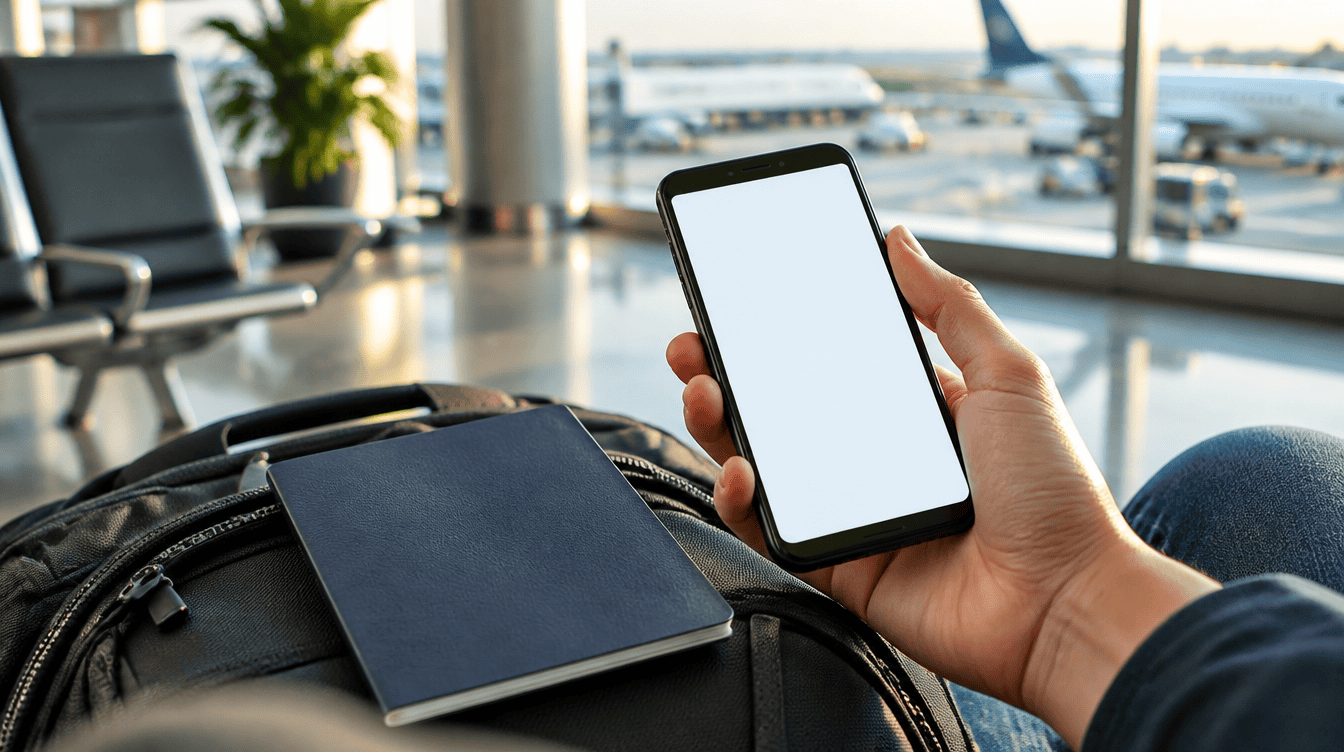
You are halfway through the security line, boarding pass on your phone, and the agent asks for ID. Your passport is buried somewhere in the carry-on. A Google Wallet passport pass is built for that moment: it turns the photo page and chip of your passport into a digital ID pass that lives on your Android phone.
The feature has been around in the United States and a few other places, and it now appears to be spreading across Europe. Setup is short, and Google says most people are verified within seconds, with a manual review usually finishing in 30 minutes or less.
Which countries the Google Wallet passport works with
Google’s own help page lists five passport regions today: the United States, the United Kingdom, Brazil, Singapore and Taiwan. According to a report from 9to5Google, the option to pick a passport from Estonia, Ireland, Italy or Spain has started to show up for some people, though it is not yet available to everyone and Google has not announced it.
Canada and Australia are not on the official list. If your passport comes from a country that is missing, the region picker simply will not offer it yet, and there is no workaround.
| Passport region | Status | Good at TSA checkpoints? |
|---|---|---|
| United States | Supported | Yes, for domestic flights at supported airports |
| United Kingdom, Brazil, Singapore, Taiwan | Supported | No |
| Estonia, Ireland, Italy, Spain | Reportedly appearing for some users | No |
| Canada, Australia | Not listed | No |
What you need before you start
- An Android phone running Android 9 or newer with NFC. NFC has to be switched on during setup because the phone reads the chip inside your passport.
- A screen lock. A PIN, pattern or fingerprint protects the pass every time it gets shared.
- A valid passport from a supported region. It also cannot already be linked to an ID pass on any of your devices.
- Bluetooth and nearby devices turned on for when you actually present the pass.
- Good light and a steady hand. You will photograph the info page and record a short video selfie.
One limit of the Google Wallet passport setup catches families off guard: each passport can create only one ID pass, and that pass can sit on just one phone. If you share a tablet with a partner, put the pass on your personal phone instead.
How to add your Google Wallet passport pass, step by step
The steps below follow the order in Google’s ID pass help page. Menu labels can shift slightly between app versions, so look for similar wording if a button reads a little differently on your phone.
- Open Google Wallet on your phone.
- Tap Add to Google Wallet (the plus button near the bottom of the screen).
- Choose ID, then ID Pass.
- Tap Continue on the intro screen.
- Pick the country that issued your passport.
- Go through the terms and tap I agree.
- Take a picture of the passport page that holds your photo and personal details.
- Check that the details pulled from the page are right, then tap Continue.
- Hold the phone against the passport so it can read the security chip. Depending on the passport, that chip sits in the front cover, the back cover or the photo page, so try each spot slowly.
- Record the short face video Google asks for.
- Pick a review type when prompted.
- Tap Continue, then Submit, and wait for the notification that says you are verified.
A common snag is the chip scan. If a Google Wallet passport setup stalls, check this step first. Take off a thick phone case, lay the passport flat on a table and move the top half of the phone slowly over each cover. If it still fails, double check that NFC is on in your quick settings.
Where you can actually use it
This is the part worth reading twice. Only a US Google Wallet passport pass works at TSA checkpoints, and only for domestic flights at airports that support digital IDs. Google is blunt about everyone else: passes from other regions cannot be used for immigration or travel. A UK or Brazilian traveler can still add one, but it will not get them through a border.
- Tap to share. Unlock your phone, hold its back near an NFC reader, look over what is being requested and tap Continue or Cancel.
- Show a QR code. Open the pass, let the reader scan its code, check the request and tap Share.
- Apps and websites. Some services accept an ID pass to confirm who you are or how old you are.
Frequent flyers with TSA PreCheck get one more perk. As Google explained in its TSA PreCheck Touchless ID announcement, you can link the pass to your saved boarding pass and use the face-scan lane at about 65 US airports, skipping the moment where you hand anything over at all.
Even so, keep the paper passport in your bag. Google states that an ID pass is not an official form of identification and may not be accepted everywhere.
Privacy and what Google keeps
Your Google Wallet passport pass is encrypted and stored on the phone itself, not in your Google Account, which also means it cannot be pulled out with Google Takeout. Nothing leaves the device until you unlock it and approve a request. Google says it deletes the face templates and biometric data from automated matching once verification is done.
Activity history for the pass is switched off by default. Turn it on if you want a record of where you shared it; only you can view that log, and switching it off again wipes it from the phone.
Removing the pass from a phone
Selling or handing down a phone? Wipe the Google Wallet passport first: open Wallet, tap the ID pass, then More and Remove twice. You can also delete it from a computer under Personal info and Manage IDs at myaccount.google.com. If your passport is lost or stolen and you suspect someone made a pass with it, Google offers a request form to block it.
If you live in a state that also issues mobile licenses, our guide on adding a Google Wallet state ID to your Android phone covers that route, and it pairs well with setting up a Google passkey so a lost phone stays locked down.
Frequently asked questions
Can I use a Google Wallet passport for international travel?
No. Google says an ID pass won’t get you through immigration, and even a US pass only works at TSA checkpoints for domestic flights. Carry your physical passport whenever you cross a border.
Can I add a Canadian passport to Google Wallet?
Not yet. Canada is not on Google’s list of supported passport regions, which currently covers the United States, the United Kingdom, Brazil, Singapore and Taiwan.
Can I put the same passport on two phones?
No. Each passport creates one ID pass, and that pass can live on only one device at a time. Remove it from the old phone before setting it up on a new one.
Is a Google Wallet passport pass worth setting up?
For US travelers who fly domestically a few times a year, yes: a short setup buys a faster checkpoint and one less thing to dig for, especially with PreCheck. Everyone else can add a Google Wallet passport for app and age checks, but it will not replace the passport at a border. Set it up at the kitchen table before the trip, not in the security line.