
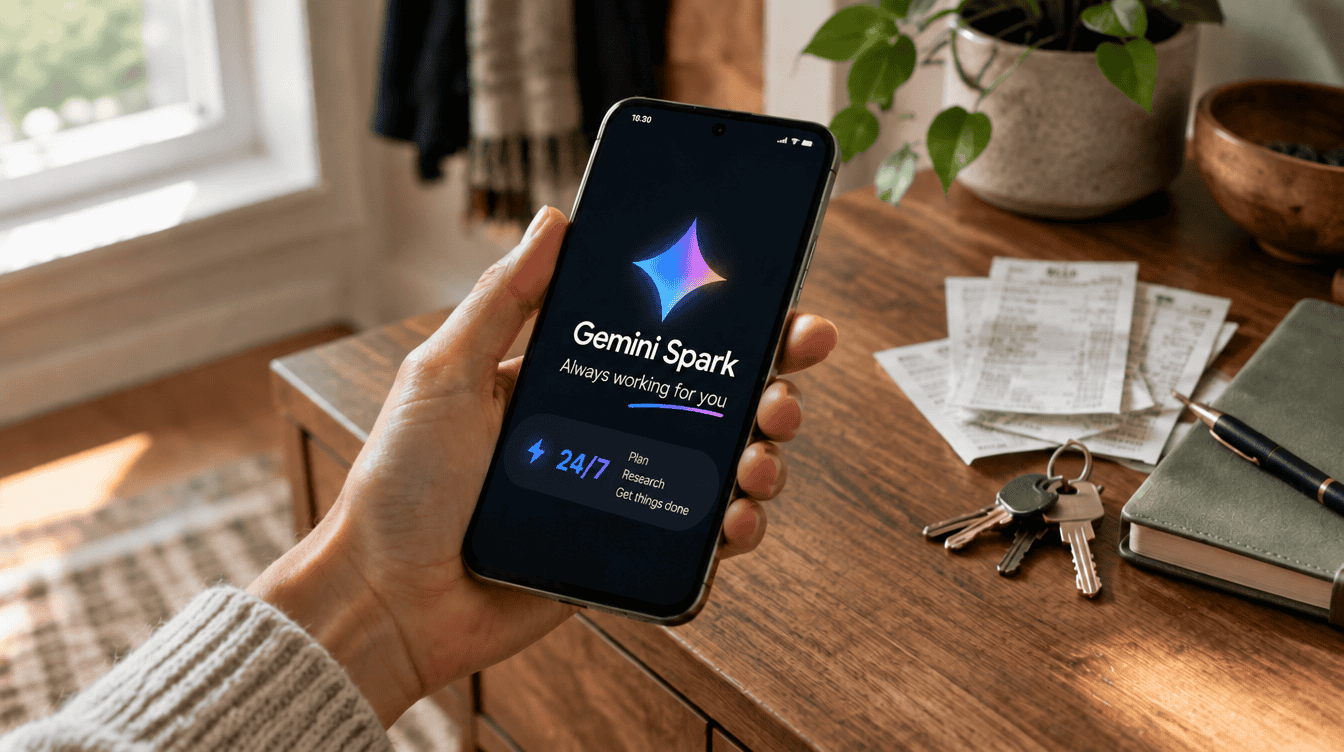
Google introduced Gemini Spark at I/O in May 2026, and on September 30 it gave the agent a new trick called skills. If you pay for Google AI Pro or Ultra, this guide covers how to use Gemini Spark for real household chores, such as “find the receipts from our camping trip, log them in a sheet and email the total to everyone who came.”
The big difference from a regular chatbot is that Spark keeps working after you close the app. Google says it runs in the background around the clock, even when your phone and laptop are switched off, and checks with you before it takes a major action.
What you need before you start
Before you work out how to use Gemini Spark, check that you can get it at all, because it is not part of the free Gemini plan. According to Google’s Gemini Spark page, access currently goes to Google AI Pro and Ultra subscribers who are over 18 and live in select countries, plus some business accounts. Google says it is widening access over the coming weeks, but it has not published a firm schedule for every region.
| Requirement | What it means for you |
|---|---|
| Google AI Pro or Ultra | The free tier does not include Spark |
| Age 18 or older | Teen accounts in the family cannot use it |
| A supported country | Availability varies, and Google is still expanding it |
| Connected apps turned on | Gmail, Calendar, Drive and the rest are off by default |
Spark can link to eight Google services: Gmail, Google Calendar, Google Maps, YouTube, Drive, Docs, Sheets and Slides. None of them are connected until you switch them on in settings.
How to use Gemini Spark to start your first task
Learning how to use Gemini Spark starts in the Gemini app on your phone, the Gemini app for Mac or Gemini on the web. Here is the basic flow.
- Open Gemini and find Spark. Tap the menu and choose Spark. On some Android phones, Spark now shows up as a Task button sitting beside a Chat button above the typing box, according to a report from 9to5Google, so look there if the menu entry is missing.
- Connect only the apps the job needs. If the task involves receipts in your inbox and a spreadsheet, turn on Gmail and Sheets and leave the rest off.
- Describe the job in plain language. Say what to look for, where to put the result and when you want it. No coding is involved.
- Attach a file if it helps. You can upload one from your device or pick one from Drive.
- Send it and let it run. Spark works on the task in the background, so you can close the app.
Specific requests get better results. “Organize my stuff” leaves too much open. “Every Monday, list next week’s school events from my email and add them to the family calendar” gives Spark a source, a destination and a schedule.
Tasks, skills and schedules in plain English
Google splits Spark into three building blocks, and knowing which one you are setting up makes the whole thing less confusing.
Tasks
The simplest way to learn how to use Gemini Spark is a single task: one job you hand off, like tracking down a misplaced invoice. Each one gets its own thread, and a progress chip at the top opens a panel showing finished steps, the current step and what is planned next.
Gemini Spark skills
Skills are where knowing how to use Gemini Spark pays off over weeks rather than minutes. They are saved instructions you can reuse instead of retyping the same prompt. Per Google’s September 30 announcement, you run one by typing a forward slash and its name in the prompt bar, you can stack several together, and a skill can carry reference files such as plain text, PDFs or images. Skills are also taking over from Gems: personal accounts lose Gems in November, and existing Gems move over to skills automatically.
Schedules
Schedules decide when work kicks off. A trigger can be a time, such as every Friday evening, or a condition you define. This is what turns Spark from a one-off helper into a weekly routine.
Gemini Spark use cases that fit family life
Google’s own examples of how to use Gemini Spark lean toward work, but several translate neatly to running a household.
- Trip money. “Plan our weekend at the lake, keep a sheet of everyone’s receipts and email the group what each family owes.”
- Home upkeep. “Pull the dates from our furnace and gutter invoices, set calendar reminders for the next service and put a supply list in Keep.”
- A weekly inbox digest. “Every Sunday night, sum up my email into a short to-do list and block quiet time on my calendar.”
- Paperwork hunts. “Find any invoices I have not paid and any receipts I need for returns.”
Once you know how to use Gemini Spark for one of these, copying the pattern to another chore takes a minute. Spark can also compare options across websites and help finish bookings or purchases, which is where you want to stay closest.
Privacy and limits to keep in mind
Part of knowing how to use Gemini Spark well is knowing when to step in. Google’s own fine print reads “Supervise closely, interrupt when needed,” and that is good advice for anyone handing an AI the keys to their inbox. A few habits help.
- Never type passwords or card numbers into a task thread. If a site needs a login or payment, enter it on that site yourself.
- Check the progress panel on anything involving money, bookings or messages sent to other people.
- Be extra careful with tasks set to run while you are offline, since nobody is watching in real time.
On email specifically, Google says Spark does not comb through your messages on its own and only works with them when you direct it to. If you would rather keep AI out of your browser altogether, our guide on how to turn off Gemini in Chrome walks through the switches.
What Google has not said yet
Google has not given dates for when Spark reaches every country, and it has not said whether under-18 users will ever get the agent itself. Skills in regular Gemini chat are coming to under-18 users “soon,” but Spark remains 18+ for now. If you are still deciding whether a paid AI plan is right for your household, our comparison of ChatGPT Plus and Google Gemini is a useful starting point.
Frequently asked questions
How much does Gemini Spark cost?
Google does not list a separate price for Spark. It comes with a Google AI Pro or Ultra subscription and is not part of the free Gemini plan.
Does Gemini Spark work when my phone is off?
Yes. Google says Spark keeps working in the background around the clock, even with your phone and laptop turned off.
Can Gemini Spark read all my emails?
Not by default. Gmail stays disconnected until you turn it on, and Google says Spark only works with your email when you direct it to.
Is it worth learning how to use Gemini Spark?
If you already pay for AI Pro or Ultra and your family runs on Gmail and Google Calendar, yes: start with one low-risk chore, like the weekly inbox digest, and grow from there. If you are on the free plan, there is no reason to upgrade just for Spark until Google says it is ready in your country. Let it fetch and sort, and keep the final click for yourself.