
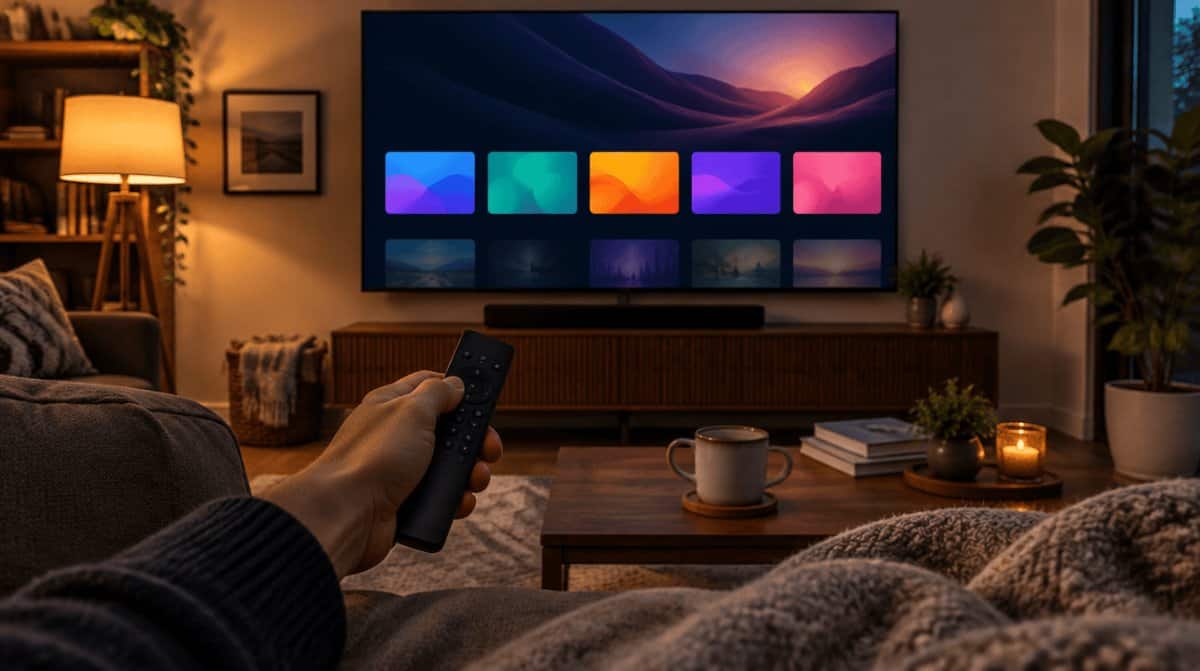
To rearrange apps on Samsung TV, highlight an app on the home screen, hold down the select button on your remote, choose Move, then slide it left or right. That covers most sets, and it takes less time than hunting for the one show your youngest wants at the far end of the row.
Older models may want a different button, such as the down key, before that menu appears. The same menu can also pull an app off the home row or uninstall it, so one short session can clean up the whole screen.
What you need before you start
There is nothing to buy and no account to create. Before you rearrange apps on Samsung TV, gather these:
- Your TV remote. Every step here happens on the TV itself.
- An internet connection. You only need this if you plan to install something new or update the TV.
- Your app passwords. Deleting and reinstalling an app signs you out, and you will have to log back in.
Your starting lineup depends on where you live. Netflix, Disney+, YouTube, Apple TV and Prime Video usually come installed on Samsung sets, though regional availability changes that list. Samsung’s own support pages also mention Xfinity and Max among the popular apps on its TVs.
How to rearrange apps on Samsung TV with your remote
- Go to the TV’s home screen.
- Move the highlight onto the app you want to shift.
- Press and hold the select button until a small menu opens. On an older set, try the down key if holding select does nothing.
- Pick Move, then push left or right to walk the app along the row.
Repeat that for each app until the order suits you. You can rearrange apps on Samsung TV as often as you like, so nothing here is permanent. We could not find a model-by-model list from Samsung showing which sets use which button, so a little trial and error on an older TV is normal.
The reason to rearrange apps on Samsung TV at all is simple: that row is what everyone in the house sees first. A few layouts that work well for families:
- “Kids first”: Disney+ and YouTube at the front, so little hands reach them in one or two clicks.
- “Movie night”: your paid streaming services side by side, for easier browsing across them.
- “Grandparent friendly”: only the two or three apps a visitor actually needs, with the rest further down the line.
How to add apps to the home screen on a Samsung TV
New installs are usually the moment you will want to rearrange apps on Samsung TV, since a fresh icon rarely lands where you would put it. Installing takes three steps:
- From the home screen, open the search bar at the top and type the name of the app.
- Select its icon to begin the install.
- When it finishes, choose the button that adds it to your home screen.
Samsung’s support page words this a little differently: press Return, pick the Search icon at the upper right, type the name, select the app and choose Install. Menus shift from one model year to the next, so follow whichever version matches what you see on screen.
Already left the install screen? Open the apps menu from the home screen, hold select on the app you want, and pick the add to home option. Once it is on the row, you can rearrange apps on Samsung TV with the steps above.
Not sure what to install? The same apps menu sorts what is available by category, which beats guessing at names with a remote keyboard.
If the TV simply lacks an app you rely on, a separate box may be the better answer. Our look at whether the Google TV Streamer is worth it for families covers one option, and our guide to getting Instagram on Apple TV shows what a set-top box can add.
Removing an app versus deleting it
Those two actions are not the same. Taking an app off the home screen tidies the row, while deleting uninstalls it from the TV. Holding select on an app brings up both choices in the same menu as Move.
Samsung also documents a second route for deleting: open Apps, choose the Settings icon at the upper right, locate the app and select Delete. If that button is grayed out, Samsung treats the app as a recommended one, and Reinstall is your option instead.
Anyone who just wants to rearrange apps on Samsung TV can skip deleting altogether. Moving icons around is enough for most homes, and it leaves your logins alone.
What to try if an app stops working
Sometimes a messy row is the smaller problem and an app refuses to load. Samsung’s app troubleshooting guide recommends going through these in order, easiest first:
- Cold boot the TV. Hold Power on the remote for about 5 seconds until the set shuts off and restarts. Without a remote, unplug it for 30 seconds. A normal off and on only puts the TV into standby.
- Update the software. Go to Settings, then Support, then Software Update, then Update Now (some menus add an All Settings step first). Expect your picture and sound settings may return to defaults. If Software Update is grayed out, Samsung says a streaming app is still active behind the scenes. Jump to the TV source or hit Samsung TV Plus on the remote to clear it.
- Delete and reinstall the app. Have the password ready, since you will be signed out.
- Reset Smart Hub. This logs you out of your Samsung account and every app, so save it for last. On 2019 and newer TVs, go to Settings, Support, Device Care, Self Diagnosis, then Reset Smart Hub. On 2018 and older sets, skip the Device Care step. The default PIN is 0000 unless someone in the house changed it.
If none of that helps and other apps run fine, Samsung points you to the app’s developer, who is responsible for keeping it compatible with the TV.
Frequently asked questions about Samsung TV apps
Why is delete greyed out on my Samsung TV?
Samsung says a grayed-out Delete button marks a recommended app, so the option is not offered. Choose Reinstall instead if the app is misbehaving.
Can I take an app off the home screen without deleting it?
Yes. The menu that opens when you hold select offers both choices, so you can clear an app from the home row or uninstall it entirely. Pick the first option if you may want it back soon.
Why can’t I find an app on my Samsung TV?
It may not be offered in your region, or it may not support Samsung TVs at all. Check the category lists in the apps menu before giving up, and if it is still missing, a separate streaming device is the usual workaround.
Should you bother reordering your Samsung TV apps?
Yes, if more than one person uses the TV or you have added a few apps since setup. A household that only opens Netflix can leave things alone. For everyone else, a few minutes spent to rearrange apps on Samsung TV buys back a lot of couch time, and far fewer shouts of “where did Disney+ go?” from the next room.