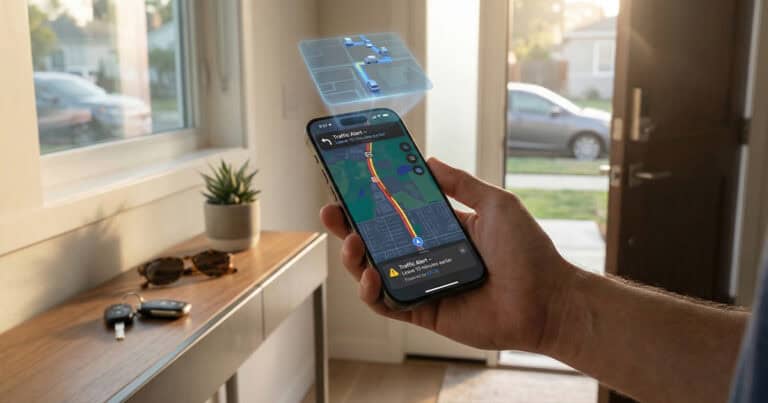

Your Google Wallet verification settings sit inside the Wallet app: tap your profile picture, open Wallet settings, and look under Security. Today the only control Google documents in that menu is a switch for transit payments, because store purchases still lean on your phone’s screen lock.
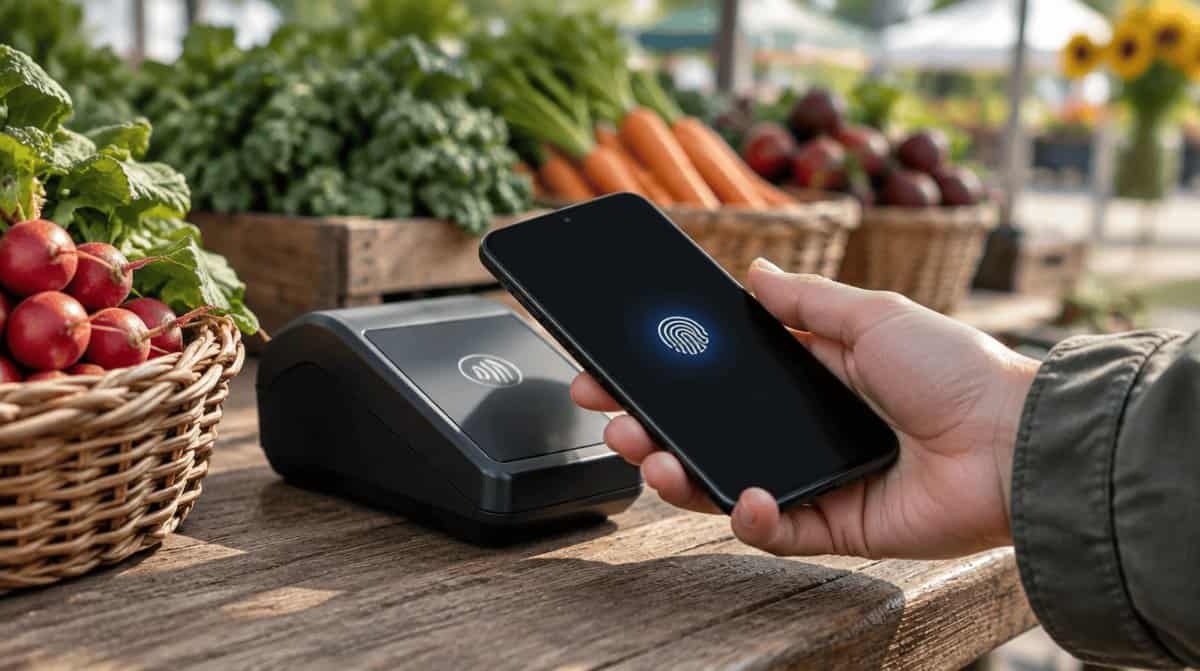
That menu may be about to grow. A new Tap to pay entry has turned up there, according to a report from Android Authority, and it may let you choose to verify before every contactless payment. Google has not announced it, so treat it as something to watch rather than something to look for tonight.
Where to find Google Wallet verification settings
The path takes four steps from the Wallet app’s home screen:
- Open the Google Wallet app on your Android phone.
- Tap your Profile picture or Account in the top right corner, then choose Wallet settings.
- In the Security section, tap Verification settings.
- Tap Transit payments, then flip Verification required off if you want to ride without unlocking.
That last switch lets a credit or debit card pay for a bus or train fare while the phone stays locked. It covers transit only, so a coffee or a grocery run still needs your screen lock. Not every transit system honors it either, which means a commuter may still have to unlock at some gates.
Which screen locks Google Wallet accepts
Your Google Wallet verification settings cannot replace a screen lock, which is mandatory for payments. Whatever you picked in Android is what the app checks, and some popular unlock methods do not count.
| Unlock method | Good for paying? |
|---|---|
| PIN, pattern or password | Yes |
| Class 3 biometric unlock | Yes |
| Class 1 or Class 2 biometric unlock | No, fall back to your PIN, pattern or password |
| Smart Unlock or Knock to Unlock | No, fall back to your PIN, pattern or password |
| Face Unlock on Pixel 7 or Pixel 7 Pro | Not for tap to pay |
Your phone maker can tell you which class your face or fingerprint unlock falls into. To change the lock itself, open the phone’s Settings app, tap Security & privacy, then Device unlock, then Screen lock. Menu names can differ from one manufacturer to the next.
One detail to remember at the register: the PIN Wallet wants is the screen lock PIN you use to unlock the phone. It is never your bank card PIN, and Google says not to type your card PIN into the terminal.
Why Google Wallet verification sometimes asks and sometimes doesn’t
If you buy lunch and then a drink next door, the second tap may go through with no prompt at all. Google’s explanation is a timer. Once you have proved it is you “in the past few minutes”, another purchase may skip the check, and after that window closes you verify again.
This is also why an unlocked phone can still throw up a prompt. If too long has passed since your last check, Wallet can ask again even with the home screen showing. Opening the app first does not get you out of it, though it does give you a place to answer the prompt. Google’s help pages list no switch for this timer in your Google Wallet verification settings.
What the new Tap to pay option might change
The report describes a Tap to pay item in the same Google Wallet verification settings menu, found while digging through the app. Early signs point to a choice about whether you must prove your identity again before paying, and the option might still make you unlock first.
Its biggest open question is the timer. The report puts the existing window at three minutes, while Google’s help page gives no number, and it is not yet clear how the new option would work alongside it. The early hints suggest a trade of a little convenience for extra payment protection, but that is not confirmed.
Google has not said when it might arrive, which phones would get it, or whether it will ship at all. Nothing in the current help pages mentions it, so if your Google Wallet verification settings show only Transit payments, your app is not broken.
When Google Wallet verification is not working at the register
Most of these fixes happen outside your Google Wallet verification settings, in the phone’s lock screen and payment setup. Try them in order, starting with the quickest. Google keeps a fuller list on its tap to pay troubleshooting page.
- Unlock first, then tap. Wake the phone and sign in before you reach the reader. The Wallet app does not need to be open.
- Hold it there longer. Keep the phone close to the reader for a few more seconds.
- Answer the prompt in the app. If the terminal asks you to swipe or insert your card, open Wallet and check for a request to verify.
- Check your unlock method. A PIN prompt on your phone usually means you tried a method Wallet does not support, so enter your Android PIN there.
- Reset the lock. Confirm the password is right, and if trouble continues, replace the screen lock with a fresh one and test it at the next purchase.
- Run through the setup list. In Wallet, open Payment setup and confirm NFC is on, Wallet is the default payment app and your card has finished setup.
Owners of a Pixel 8 or newer can also set a double press of the power button as a shortcut to Wallet, which saves fumbling at the checkout. If you keep IDs in the app too, our guides to adding a state ID to Google Wallet and setting up a passport ID pass walk through those.
Frequently asked questions
Can you use Google Wallet without unlocking your phone?
Only for transit, and only where the transit system allows it. Other payments still need your screen lock, unless you verified in the past few minutes.
Does Google Wallet require a PIN?
Not always. It accepts your Android screen lock PIN, a pattern, a password or a Class 3 biometric unlock, and it never asks for your bank card PIN.
Does Google Wallet require a screen lock?
Yes. Google requires an active Android screen lock on the device before any payment will go through.
Should you change your Google Wallet verification settings?
Daily commuters on a supported system should turn off the transit check, since it saves a real fumble at the gate. Everyone else can leave their Google Wallet verification settings alone and spend the two minutes making sure their screen lock is one Wallet accepts. A phone that holds your cards deserves a lock you would trust with your actual wallet.